For many companies, regardless of their industry, Business Intelligence and Big Data technologies may seem essential yet overly complex when it comes to planning and implementation. Today, we’ll take a first practical approach, showing how you can analyze data from your favorite online services such as Google Analytics, Microsoft Azure, or Dynamics 365 with just a couple of clicks — and even start talking directly to your data.
“Organizations that use big data are 70% more likely to see their BI projects managed by business users rather than by the IT department.”
— Aberdeen Group
Data analytics technologies continue to grow at an unstoppable pace, alongside the increasing importance of data for business development. Solutions such as Azure Data Lake and Azure SQL Data Warehouse enable large-scale data storage, while Cortana Intelligence Suite and Azure Analysis Services help transform that data into actionable insights for end users in increasingly simple ways.
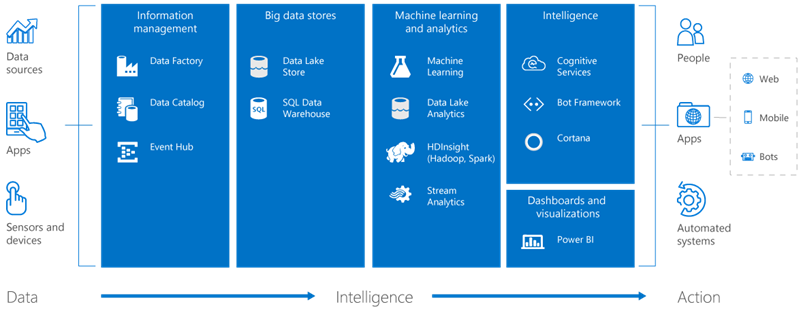
Within this expanding ecosystem of tools, one platform that has positioned itself as a leader in data transformation and visualization is Power BI, Microsoft’s Business Intelligence solution.
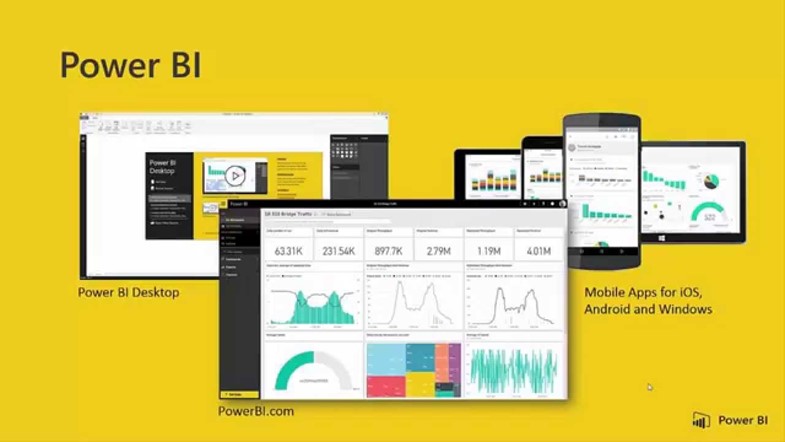
Power BI allows organizations to transform and analyze large volumes of data from multiple sources, including SQL databases, Excel files, Microsoft Azure, and external services such as Facebook and Google Analytics. In this post, we’ll focus on connecting to external services, enabling you to consume data without worrying about the underlying infrastructure.
Getting Started with Microsoft Power BI
To begin, you’ll need Power BI or Power BI Premium. The standard version is free but comes with certain limitations. In this example, we’ll use Power BI Premium to demonstrate integration with Office 365 Groups when sharing dashboards and reports.
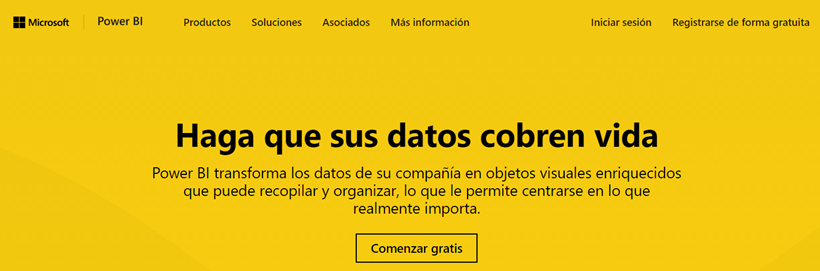
First, access the Power BI portal at: Power BI - Data Visualization | Microsoft Power Platform
After registering and signing in, you’ll land on the Power BI Online dashboard.
On the left-hand navigation panel, you’ll find:
-
Featured Dashboard – Save the charts you consult most frequently.
-
Favorites – Quickly access dashboards shared within your organization via Office 365 Groups.
-
Workspaces – Switch between your personal workspace and shared Office 365 group workspaces.
-
Dashboards – Display visual tiles that summarize report data.
-
Reports – Contain visual representations built from datasets.
-
Datasets – Data extracted from databases and ready for analysis in Power BI.
For this example, we’ll use an Office 365 group workspace called Geeks.

Click Get Data and select the Services section, since we’re connecting to an external service.
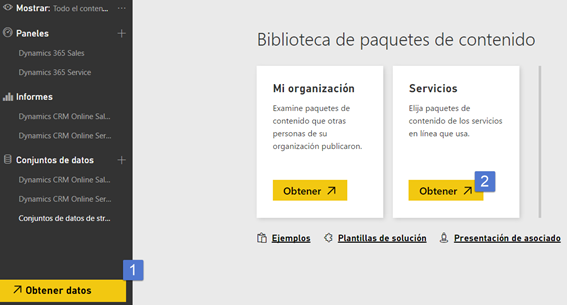
This opens AppSource, where you can browse content packs from Microsoft and third-party providers. In this case, we’ll connect to Google Analytics to give users in the Geeks group access to selected analytics data — without requiring them to log directly into Google Analytics.
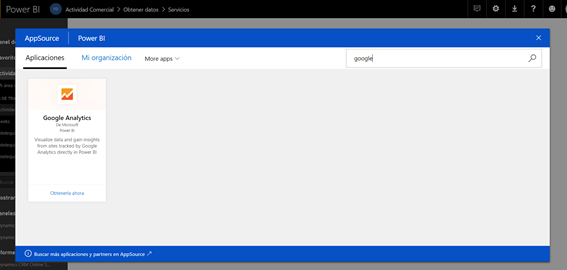
After clicking Get Now, you’ll be prompted to authenticate using your Google Analytics admin account.
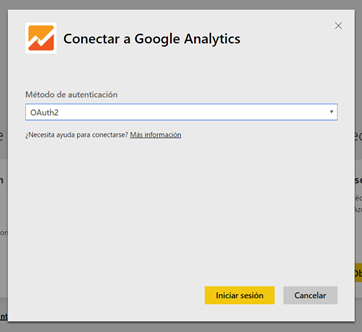
Once authentication is successful, Power BI automatically loads:
-
A dataset
-
A report
-
A dashboard
Content packs include not only the data connection but also prebuilt reports and dashboards designed to highlight the most relevant metrics by default.
Power BI dashboards: Visual data at a glance
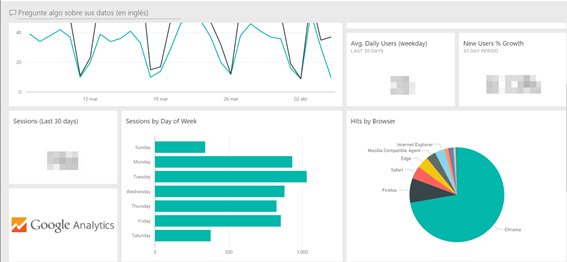
Dashboards summarize key parts of reports using visual tiles. Clicking a tile redirects you to detailed information.
One of Power BI’s most powerful features is its natural language query tool (currently in English), allowing users to ask questions directly to their data. For example, you can type:
“Show sessions by month as a pie chart.”
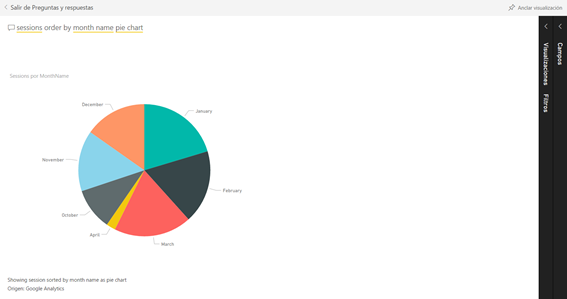
Power BI automatically generates the visualization. You can then pin this visual to your dashboard, making it easy for non-technical users to customize and consume insights.
Interactive reports in Power BI
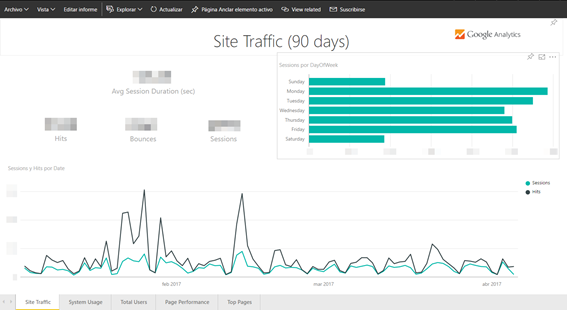
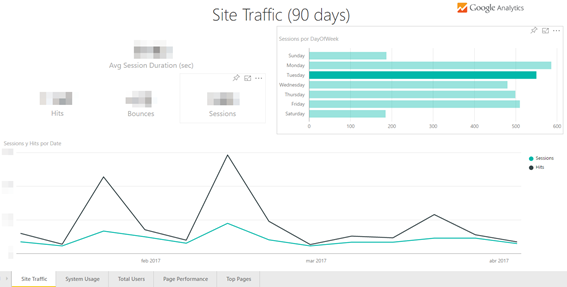
Reports offer deeper interactivity. Clicking on an element applies filters dynamically. For example, selecting “Tuesday” in a chart updates all related visuals to display only Tuesday’s data.
Users can:
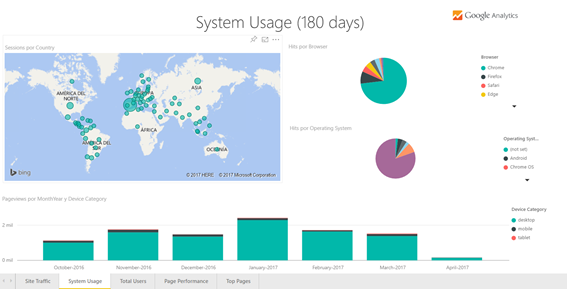
All visuals are powered directly by the connected datasets.

After analyzing your data, sharing insights is often the next step. Power BI allows you to:
As a first approach to Business Intelligence, Power BI demonstrates how even a free solution can help organizations analyze large volumes of internal and external data. It enables businesses to uncover strategic insights quickly, efficiently, and without requiring advanced technical expertise.
Power BI empowers companies to embrace data-driven decision-making in a simple, agile, and scalable way.