Planner is the latest application added to Office 365 for businesses, offering a powerful yet simple tool to organize tasks for team members. As part of the Office 365 suite, Planner integrates seamlessly with Groups, Calendars, and application connectors like Dynamics CRM or BitBucket.
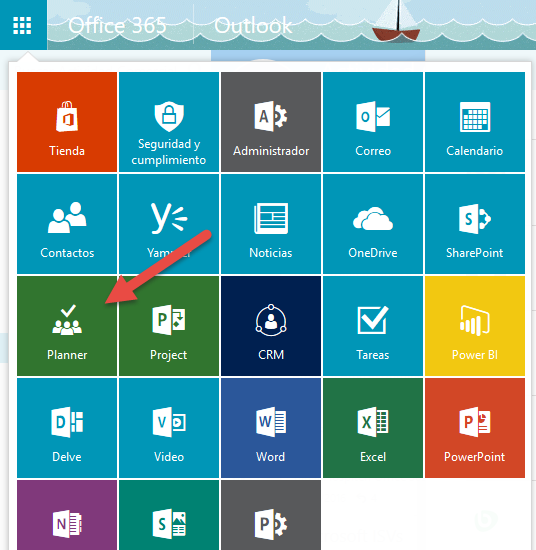
Today, we’ll cover the basics of using Planner, starting with accessing it from the Office 365 App Launcher.
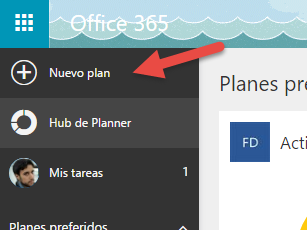
Creating a new plan in Microsoft Planner
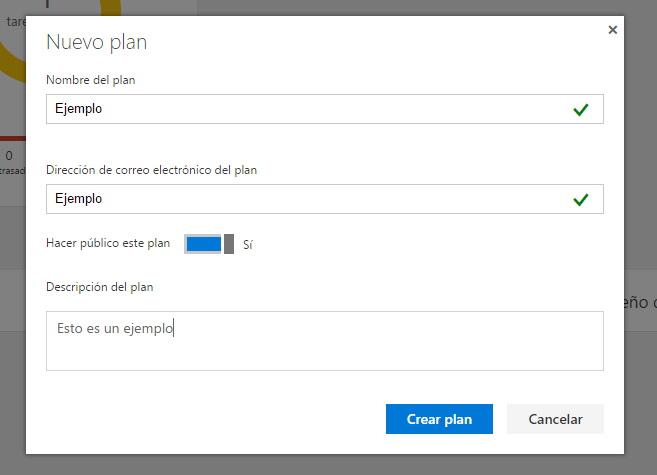
Once in Planner, the first step is to create a plan for the activities you want to manage by clicking New Plan.
You can set the plan name, whether it is public or private, and add a description. Public plans allow anyone in the organization to join without an invitation, while private plans require an invitation.
Creating a plan also automatically creates a group, which includes:
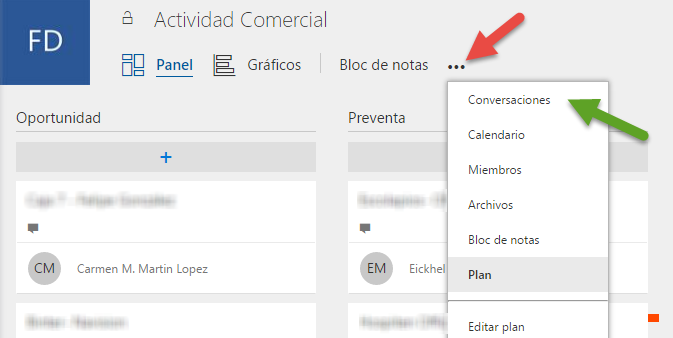
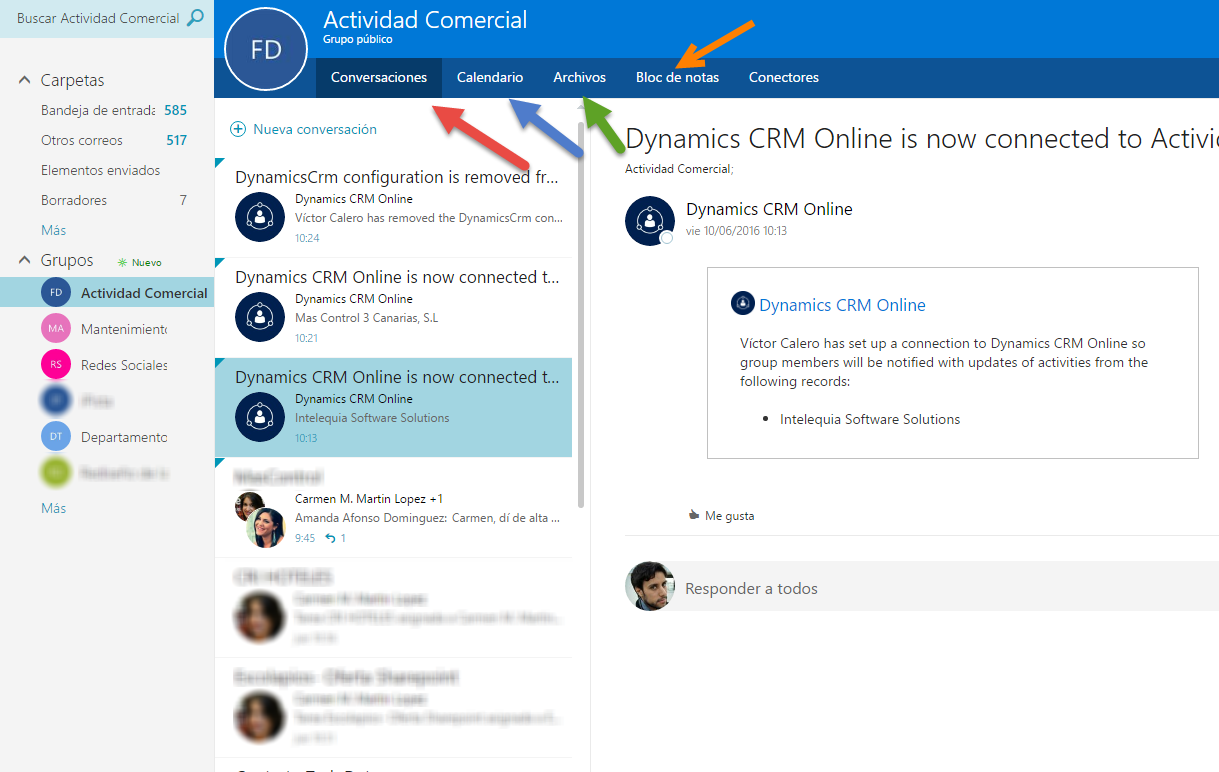
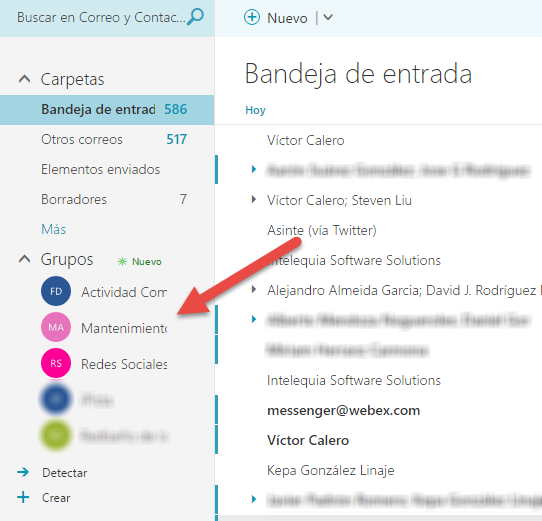
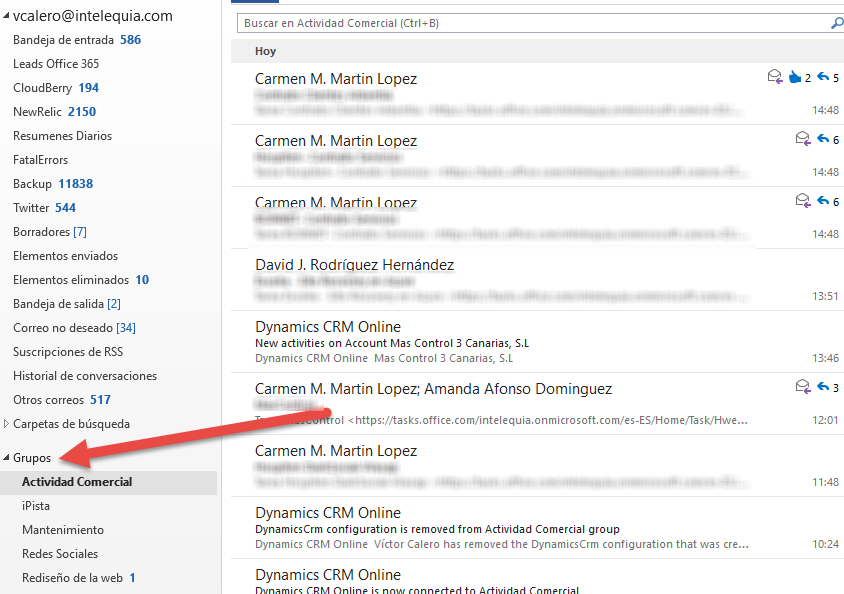
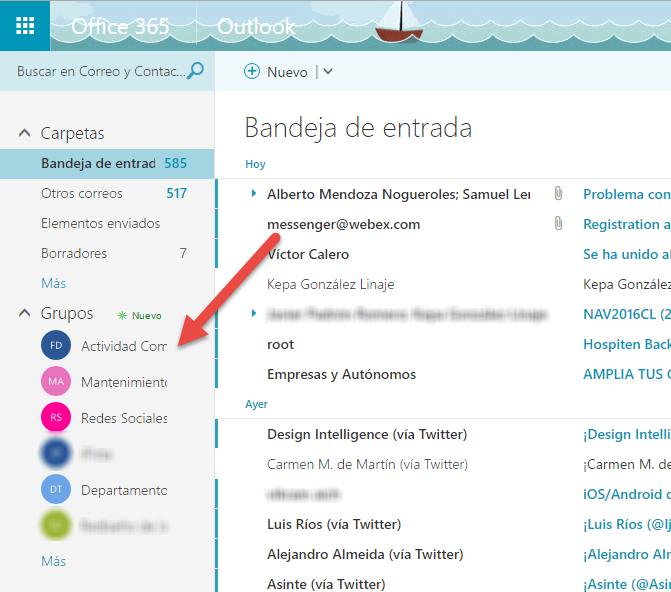
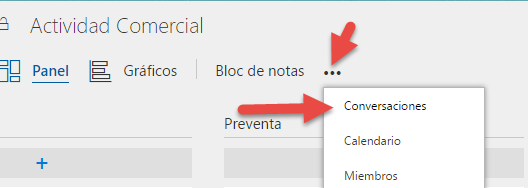
You can access this group area via Planner’s Conversations option or directly from Outlook in Office 365.
Planner views and workflow customization
By default, entering a plan opens the Board View, allowing you to customize task workflows beyond simple progress states.
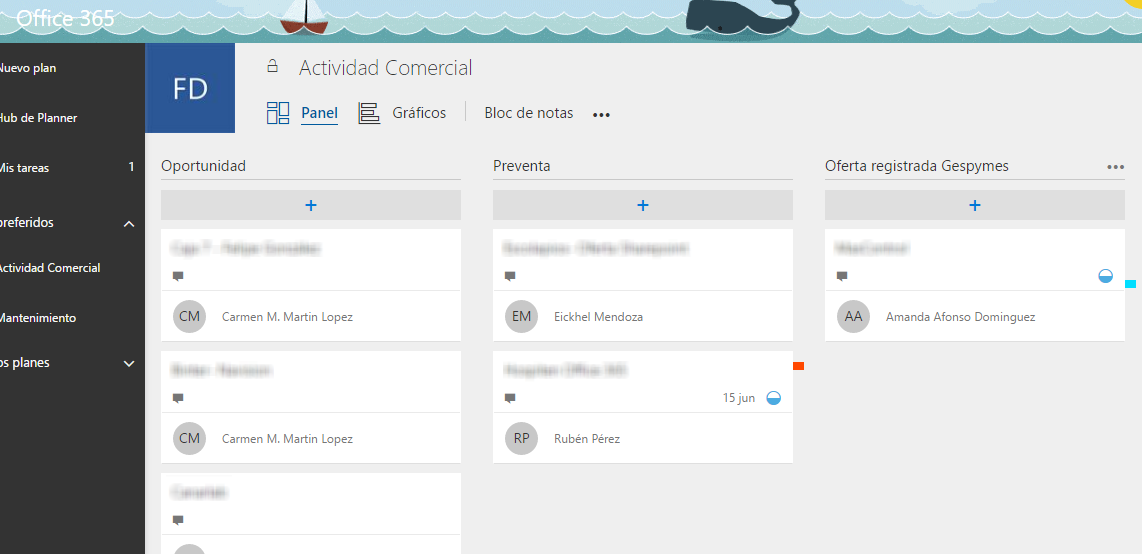
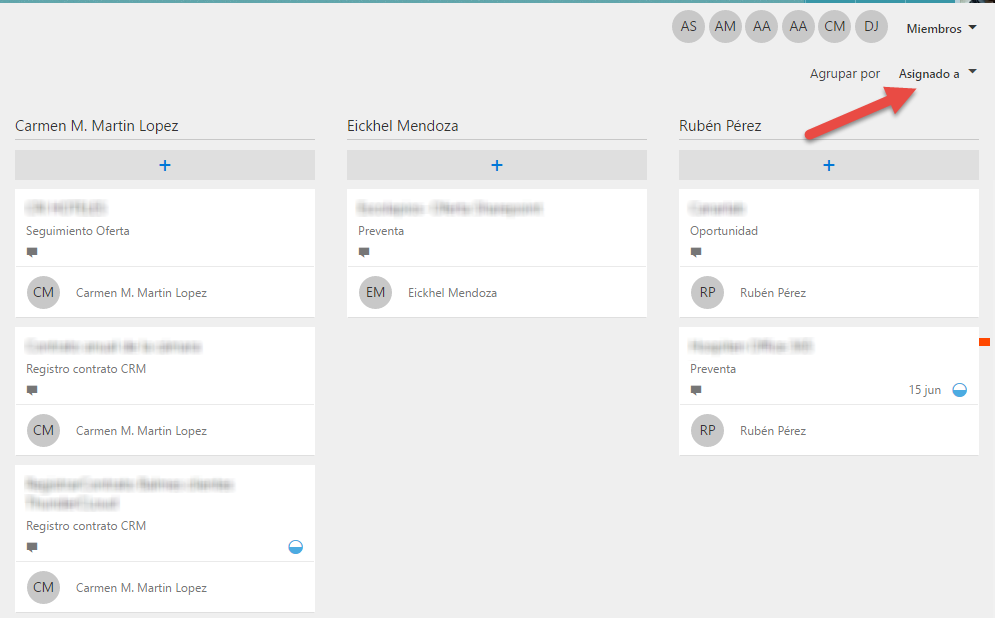
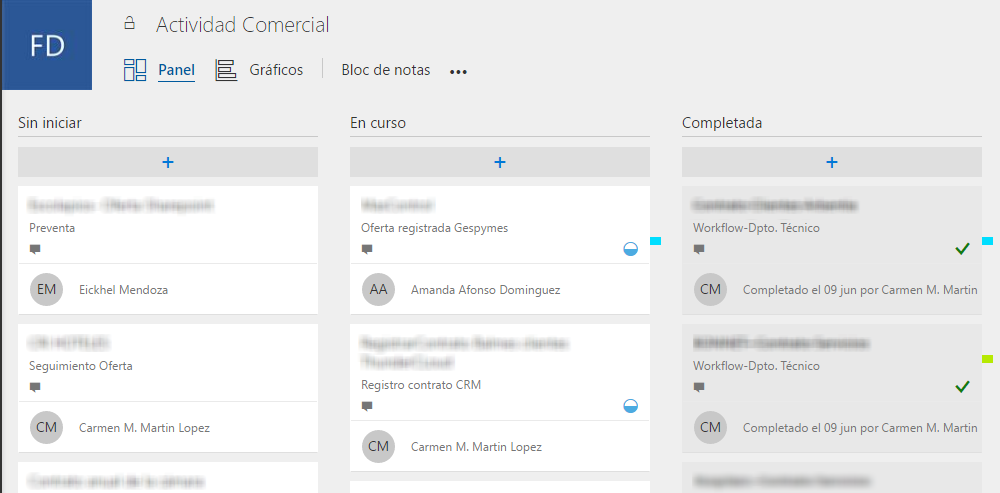
Planner also provides two additional views:
-
Assigned To View – Displays tasks organized by the assigned user and task progress.
-
Progress View – Shows tasks ordered by their progress status, which must be set by the assigned user within each task.
Creating and managing tasks in Planner (Office 365)
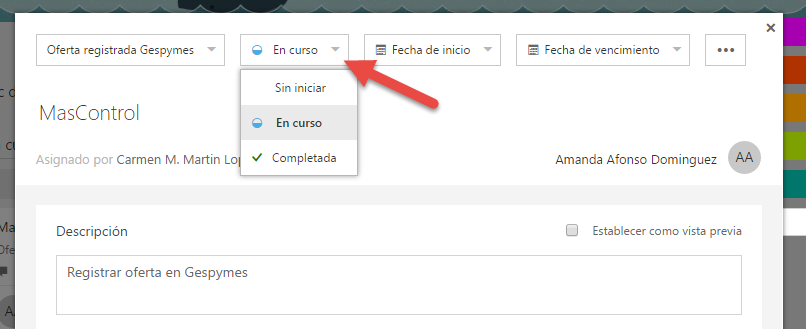
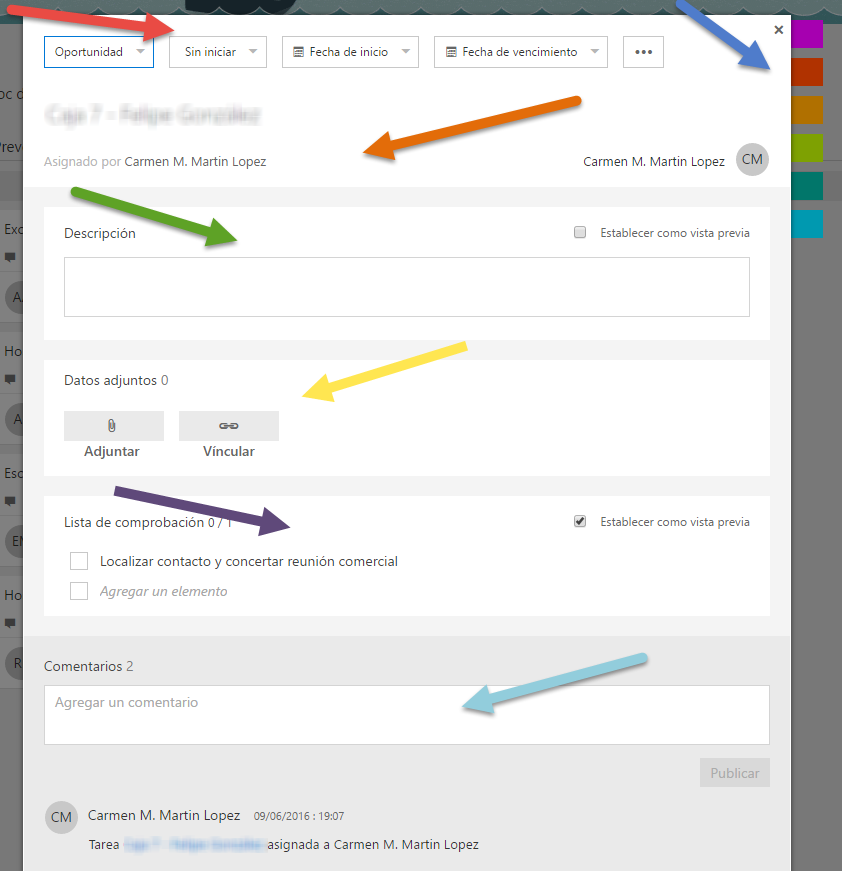
Planner tasks include multiple configurable sections:
-
Flow Zone – Define which bucket the task belongs to, its progress status, start date, and due date.
-
Labels Zone – Color-coded labels for easy task categorization.
-
Task Name and Assignment – Assign tasks to team members.
-
Description – Optionally shown in task previews on the board.
-
Attachments – Attach files or images for preview on the board.
-
Checklist – Subtasks or objectives, optionally marked as completed directly from the preview.
-
Comments – Team members can discuss the task here.
Visualizing tasks
Planner offers two graphical options to track tasks:
-
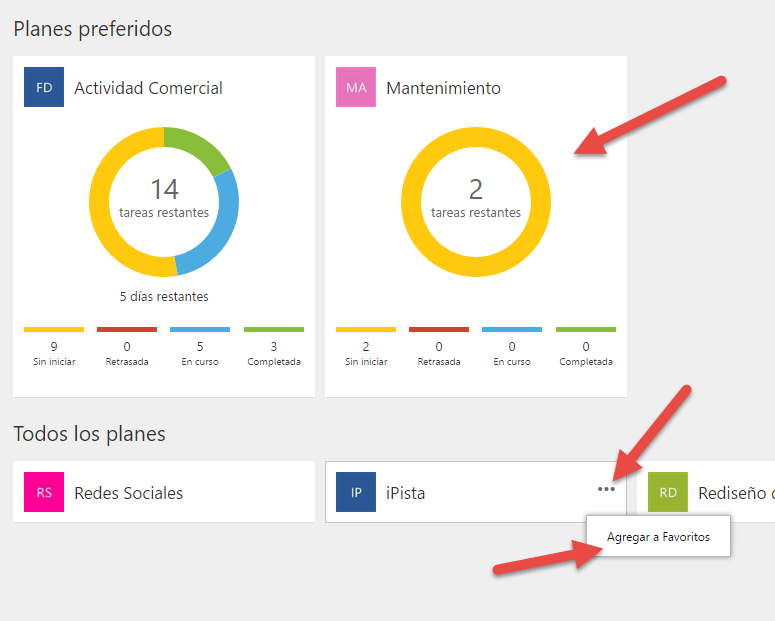
Favorites View – Displays a chart of tasks by progress status.
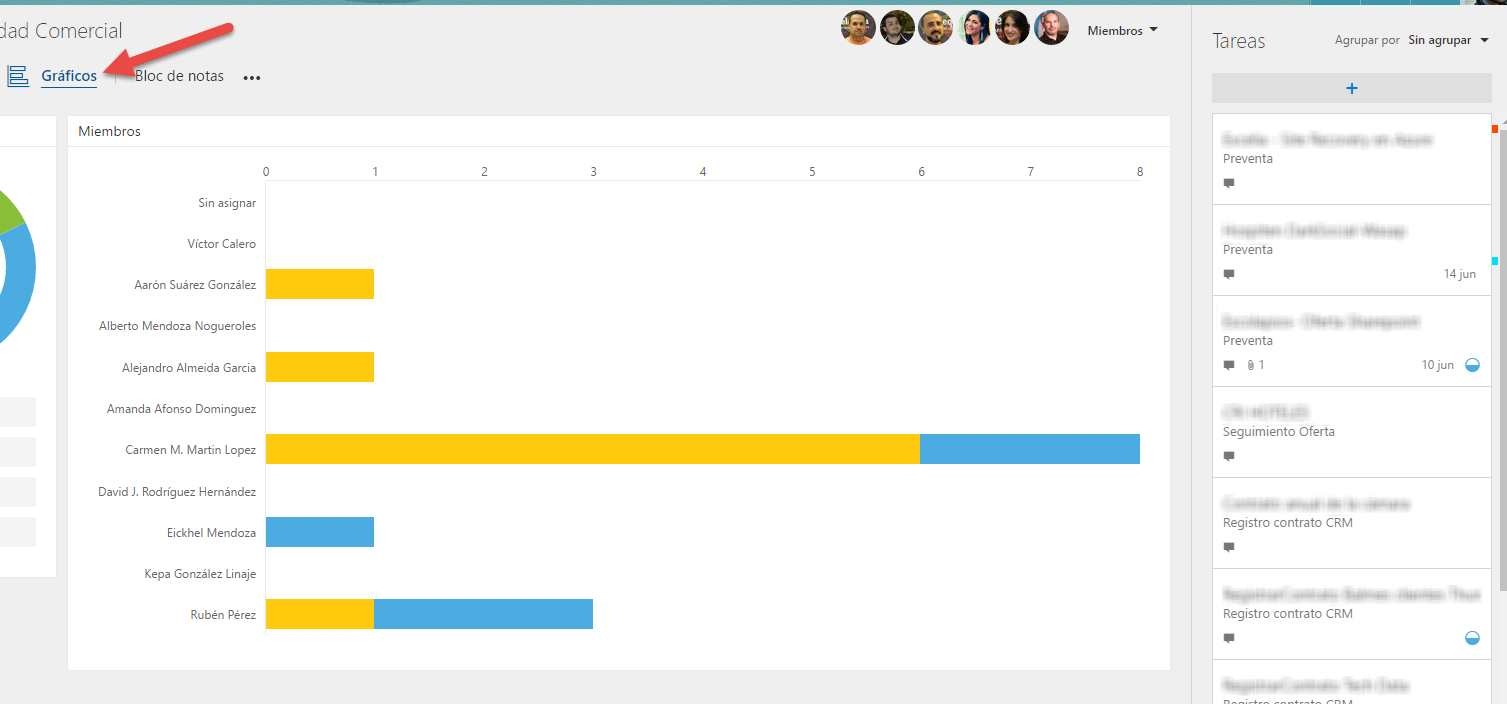
2. Charts View – Visualizes tasks by progress and assigned user. You can also create and assign tasks directly from this view, helping balance workloads efficiently.
Notifications and subscriptions in Microsoft Planner
By default, Planner sends notifications when:
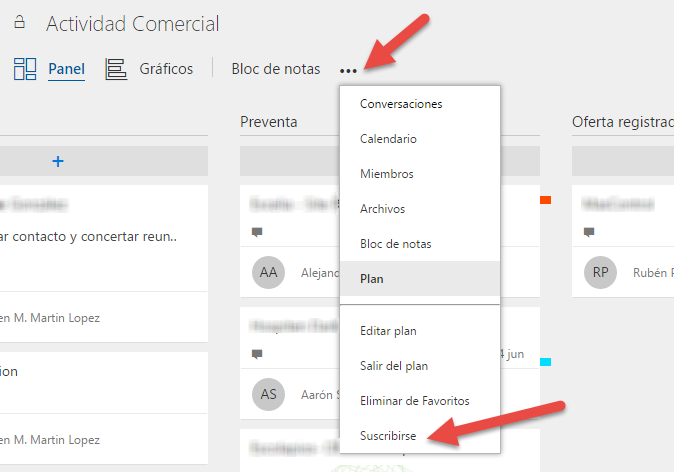
Additionally, the Subscribe button allows email notifications whenever:
-
A new task is added
-
A task is assigned or reassigned
-
Task details such as dates, progress, or buckets change
-
Any member adds a comment to a task
Group conversations and connectors
You can also monitor all plan activity through group conversations, displaying all comments and changes. Click Conversations to access this.
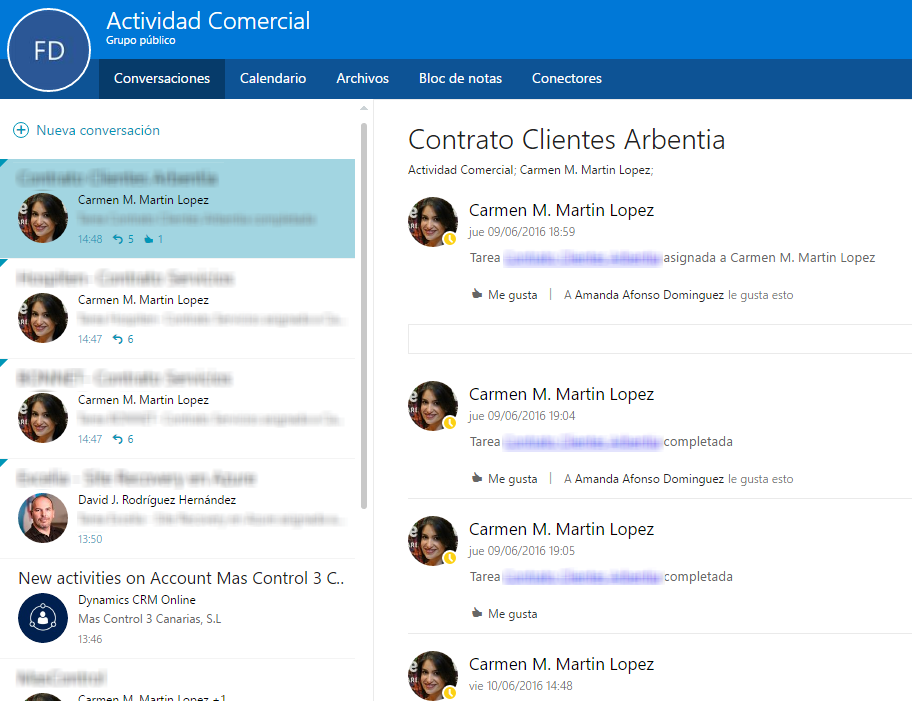
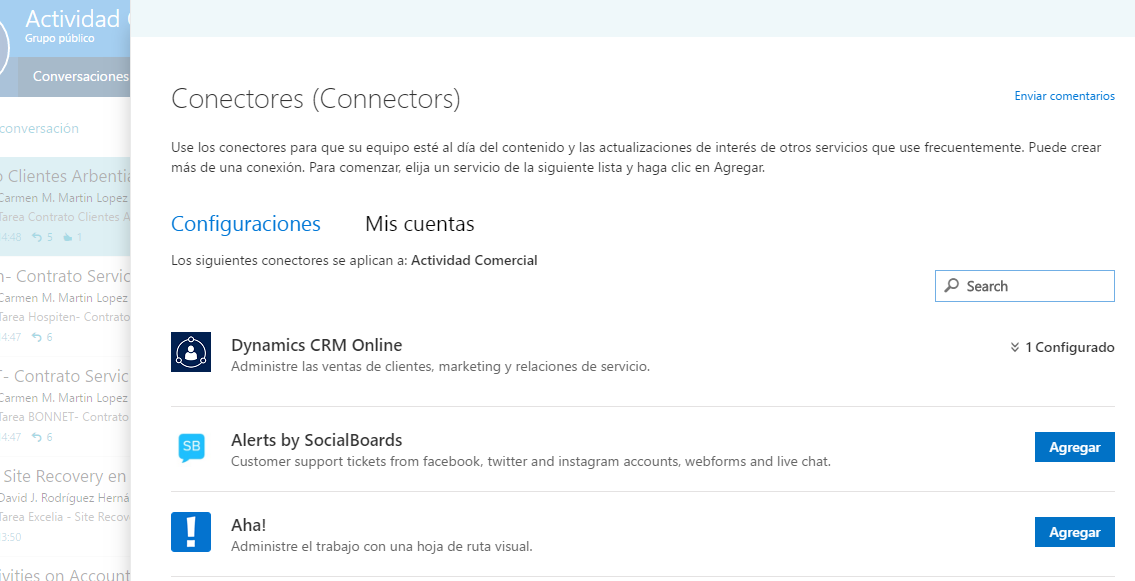
Connectors can integrate notifications from other apps relevant to the group’s work, such as Git, CRM, JIRA, MailChimp, and more.
Finally, group notification messages can be viewed in Outlook for Office 365 or in the desktop application, provided Office 2016 is installed and updated to the latest version.