Today we will learn how to implement a site-to-site and host-to-site VPN connection between our on-premises resources and Azure without creating an Azure Virtual Gateway. In other words, we will connect without using the “Virtual Gateway” resource provided by Microsoft.
The goal is to enable secure interaction from the workplace with different Azure resources. It is known that using a Virtual Gateway allows full communication with Azure resources. However, if we deploy a standard VPN server in Azure, we can usually only communicate with the VPN server itself, not with other Azure resources. After deeper research, we found a way to make this possible.
This implementation gives us more control over the connection, although it is more technical than the method Microsoft provides. Bandwidth tests show that performance is similar to the standard method. In summary, after extensive research, this becomes an alternative way to implement VPN connections.
Special thanks to Alejandro, since he did most of the research (in particular discovering how to use Azure UDR tables and Linux iptables commands).
Note: This document assumes that the reader knows how to deploy resources in Azure and configure routing in the on-premises workplace network.
IMPLEMENTATION OVERVIEW - VPN AND AZURE CONNECTION
To illustrate the implementation, we will use the following diagram:
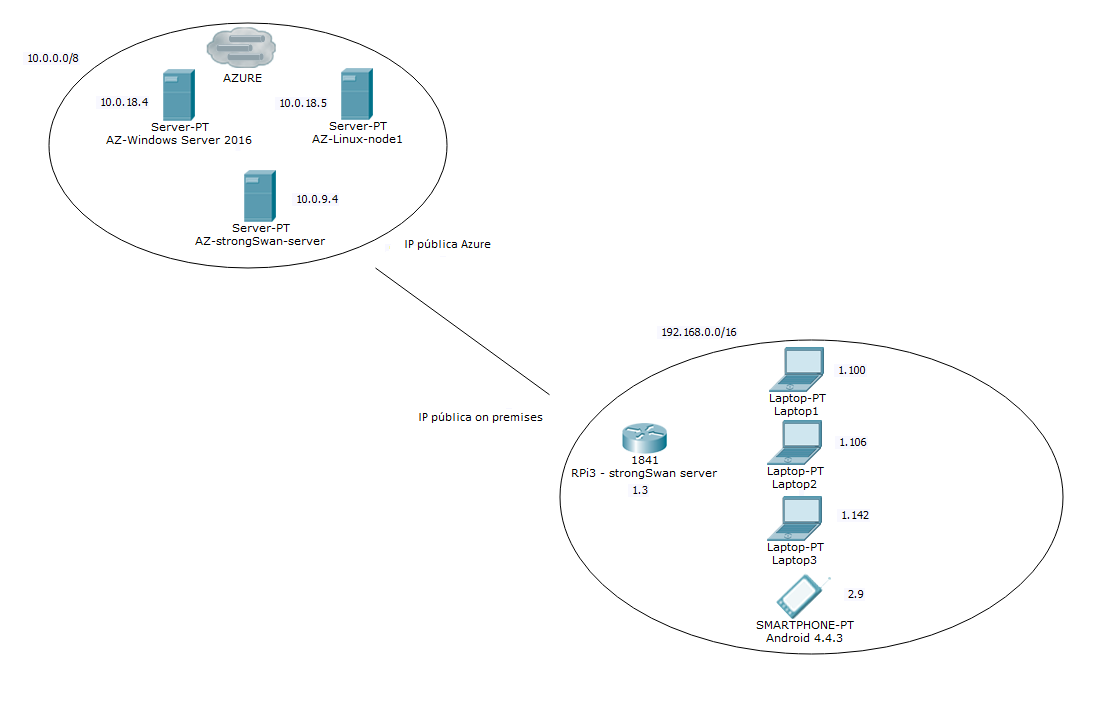
If we look closely, we see:
-
A typical on-premises infrastructure on the bottom right. This includes a Raspberry Pi 3 device acting as a VPN server, three work laptops, and a mobile device located in a different subnet (IP 192.168.2.9).
-
In Azure, we will have a machine acting as a VPN server connecting to the Raspberry Pi, plus two other machines: a Linux VM and a Windows Server 2016 VM.
-
For the implementation to work correctly, the Azure VPN server must be isolated in its own subnet, effectively acting as a router.
One of the objectives is to be able to communicate normally with Azure resources and access the Windows Server 2016 machine via Remote Desktop.
STRONGSWAN - VPN CONNECTIONS
The software we will use to establish VPN connections is strongSwan. It is an open-source, free tool available for many Linux distributions. A key advantage of strongSwan is that, besides supporting site-to-site connections, it also supports host-to-site connections. We successfully connected it directly with Windows clients (7, 8, and 10), but not with Android devices.
For Android, there is a strongSwan client that simplifies many configuration options. It is easy to configure, but we could not establish a connection (likely due to a certificate issue). Once we successfully connect, I will publish another document explaining how to configure Android clients.
CONFIGURING AZURE
First, we must open certain ports in an Azure security group, specifically ports 500, 4500, and 3389. The first two are used by strongSwan, and the third is the default port for Windows Remote Desktop. The configuration should look like this:
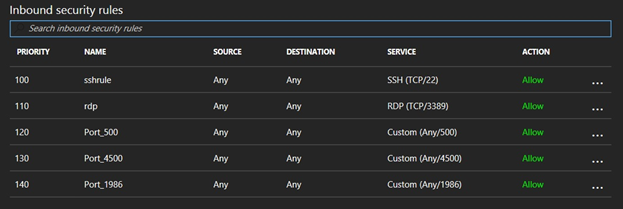
We also opened port 1986 for bandwidth testing with iperf3, but this is optional.
Next, we place the Linux machine running strongSwan in its own subnet so that it can correctly route requests from Azure resources to on-premises resources:
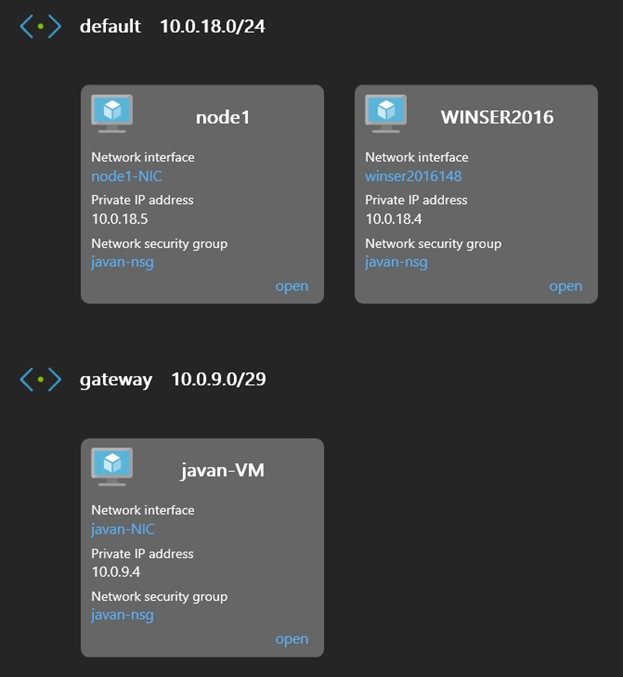
As mentioned earlier, we have two subnets: one for the VPN server (a Linux VM named “javan-VM”) and another for the two nodes (a Linux VM named “node1” and a Windows Server 2016 VM).
After this, we connect to the Azure server and install strongSwan with:
sudo apt-get install strongswan strongswan-plugin-eap-mschapv2
Then we edit two files: /etc/ipsec.conf and /etc/ipsec.secrets.
/etc/ipsec.conf
This file defines the connections the server will make. The minimum configuration is:
conn %default
authby=secret
auto=add
type=tunnel
keyexchange=ikev2
ike=aes256-sha1
esp=aes256-sha1
left=10.0.9.4 # Depends on your configuration
leftid=@irl.intelequia.com # Can be any identifier
leftsubnet=10.0.0.0/8 # Subnet we expose

conn TEST
right=<ON-PREMISES PUBLIC IP>
rightid=@tfe.intelequia.com
rightsubnet=192.168.0.0/16
The first section, conn %default, sets default parameters for all connections:
-
authby=secret: authentication uses /etc/ipsec.secrets.
-
auto=add: connection is established automatically when traffic is detected. If auto=start is used, it starts immediately.
-
type=tunnel: sets tunnel mode.
-
keyexchange, ike, and esp: define connection protocol and encryption algorithms.
-
left=10.0.9.4: private IP of the Azure server.
-
leftid=@irl.intelequia.com: identifier for the connection. Using @ disables DNS lookup.
-
leftsubnet=10.0.0.0/8: subnet exposed by Azure.
The second section defines the on-premises VPN endpoint:
-
right=<ON-PREMISES PUBLIC IP>
-
rightid=@tfe.intelequia.com
-
rightsubnet=192.168.0.0/16 (covering both 192.168.1.0/24 and 192.168.2.0/24)
/etc/ipsec.secrets
: PSK "insiemenoi"
This key must match on the on-premises server.
IPTABLES ROUTING CONFIGURATION
Now we configure routing using iptables. This script sets rules to allow or reject traffic to the on-premises server:
# Enable kernel forwarding
sysctl -w net.ipv4.ip_forward=1

# Install netfilter-persistent
apt-get install netfilter-persistent

# Clear existing rules
iptables -P INPUT ACCEPT
iptables -P FORWARD ACCEPT
iptables -F
iptables -Z

# Allow SSH and loopback
iptables -A INPUT -m state --state ESTABLISHED,RELATED -j ACCEPT
iptables -A INPUT -p tcp --dport 22 -j ACCEPT
iptables -A INPUT -i lo -j ACCEPT

# Allow strongSwan ports
iptables -A INPUT -p udp --dport 500 -j ACCEPT
iptables -A INPUT -p udp --dport 4500 -j ACCEPT

# Forward IPsec traffic between subnets
iptables -A FORWARD --match policy --pol ipsec --dir in --proto esp -s 192.168.0.0/16 -j ACCEPT
iptables -A FORWARD --match policy --pol ipsec --dir out --proto esp -d 192.168.0.0/16 -j ACCEPT
iptables -A FORWARD --match policy --pol ipsec --dir in --proto esp -s 10.0.0.0/8 -j ACCEPT
iptables -A FORWARD --match policy --pol ipsec --dir out --proto esp -d 10.0.0.0/8 -j ACCEPT

# NAT rules
iptables -t nat -A POSTROUTING -s 192.168.0.0/16 -o eth0 -m policy --pol ipsec --dir out -j ACCEPT
iptables -t nat -A POSTROUTING -s 192.168.0.0/16 -o eth0 -j MASQUERADE
iptables -t nat -A POSTROUTING -s 10.0.0.0/8 -o eth0 -m policy --pol ipsec --dir out -j ACCEPT
iptables -t nat -A POSTROUTING -s 10.0.0.0/8 -o eth0 -j MASQUERADE

# MSS clamping
iptables -t mangle -A FORWARD --match policy --pol ipsec --dir in -s 192.168.0.0/16 -o eth0 -p tcp -m tcp --tcp-flags SYN,RST SYN -m tcpmss --mss 1361:1536 -j TCPMSS --set-mss 1360

# Save and reload
netfilter-persistent save
netfilter-persistent reload
Restart strongSwan:
sudo ipsec restart
To view logs:
sudo ipsec restart && sudo tail -f /var/log/syslog | grep charon
CONFIGURING THE ON-PREMISES RASPBERRY PI
Before configuring the Raspberry Pi, add a route on the on-premises router so that traffic to 10.0.0.0/8 is redirected to the Raspberry Pi.
The configuration is similar to the Azure server, with left and right values inverted:
conn %default
authby=secret
auto=add
type=tunnel
keyexchange=ikev2
ike=aes256-sha1
esp=aes256-sha1
left=192.168.1.3
leftid=@tfe.intelequia.com
leftsubnet=192.168.0.0/16
conn TEST
right=<AZURE PUBLIC IP>
rightid=@irl.intelequia.com
rightsubnet=10.0.0.0/8
The ipsec.secrets file is the same:
: PSK "insiemenoi"
Restart the service:
sudo ipsec restart
Check status:
sudo ipsec status

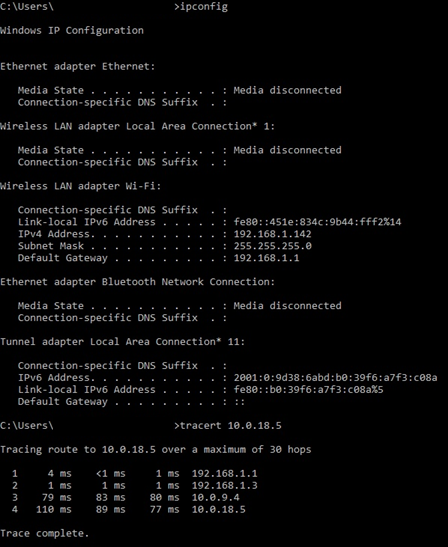
At this point, the tunnel is established and Azure resources can communicate with on-premises resources. We tested connectivity using the Linux VM 10.0.18.5:
And we check the Remote Desktop to the Windows Server 2016 VM 10.0.18.4:
UDR TABLES (USER DEFINED ROUTES)
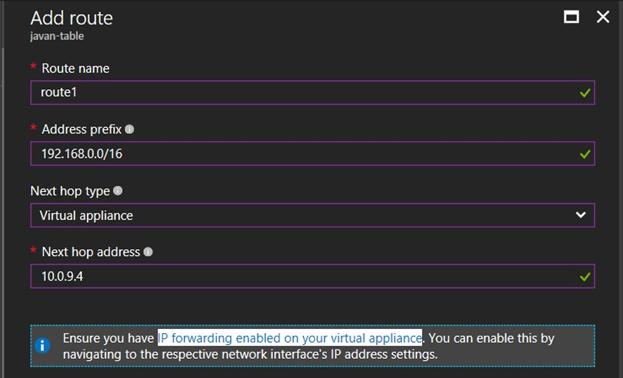
Although we could communicate from on-premises to Azure, Azure resources could not communicate back. To solve this, we used Azure UDR tables (User Defined Routes).
This works like ip route in Linux. We create a UDR resource and add routes:
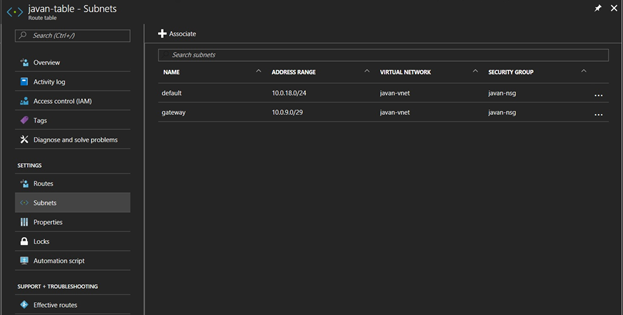
- Effective routes: verify that Azure VMs are using the routes.
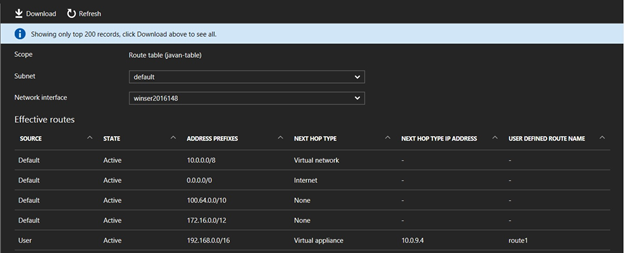
If the route does not appear, reboot the VM to apply the configuration.
Once configured, Azure resources can communicate with on-premises resources.
HOST-TO-SITE
Previously we mentioned that, in addition to a site-to-site connection, we also configured host-to-site. This is very useful if, for example, we want to connect from anywhere to the infrastructure resources (Azure or on-premises).
This configuration is more complex because it requires certificates. We implemented it on the Azure server since we wanted it to allow access to both Azure and on-premises resources. And it worked.
On the server, we edited /etc/ipsec.conf to configure another connection:
config setup
uniqueids=no

conn HOST-TO-SITE
auto=add
type=tunnel
keyexchange=ikev2
ike=aes256-sha1-modp1024,3des-sha1-modp1024!
esp=aes256-sha1,3des-sha1!
leftid=@<AZURE PUBLIC IP>
leftcert=/etc/ipsec.d/certs/vpn-server-cert.pem
leftsendcert=always
leftsubnet=0.0.0.0/0
right=%any
rightid=%any
rightauth=eap-mschapv2
rightdns=8.8.8.8,8.8.4.4
rightsourceip=172.16.0.0/24
rightsendcert=never
eap_identity=%identity
Here we can see:
-
right and rightid are set to %any to allow any host to connect.
-
The identifier uses the server’s IP, which is used when creating the certificate.
-
The parameters allow host-to-site connections and assign a virtual IP via rightsourceip.
Then we edited /etc/ipsec.secrets:
<AZURE PUBLIC IP> : RSA "/etc/ipsec.d/private/vpn-server-key.pem"
javan %any% : EAP "1234"
javon %any% : EAP "1234"
This specifies the private key location and defines users with passwords.
We also needed iptables rules for the virtual subnet 172.16.0.0/11:
iptables -A FORWARD --match policy --pol ipsec --dir in --proto esp -s 172.0.0.0/11 -j ACCEPT
iptables -A FORWARD --match policy --pol ipsec --dir out --proto esp -s 172.0.0.0/11 -j ACCEPT
iptables -t nat -A POSTROUTING -s 172.0.0.0/11 -o eth0 -m policy --pol ipsec --dir out -j ACCEPT
iptables -t nat -A POSTROUTING -s 172.0.0.0/11 -o eth0 -j MASQUERADE
To make this work, we created certificates using the following commands:
# Generate CA private key
ipsec pki --gen --type rsa --size 4096 --outform pem > server-root-key.pem
chmod 600 server-root-key.pem

# Generate CA certificate
ipsec pki --self --ca --lifetime 3650 \
--in server-root-key.pem \
--type rsa --dn "C=ES, O=Organization, CN=VPN Server Root CA" \
--outform pem > server-root-ca.pem

# Generate server private key
ipsec pki --gen --type rsa --size 4096 --outform pem > vpn-server-key.pem

# Issue server certificate
ipsec pki --pub --in vpn-server-key.pem \
--type rsa | ipsec pki --issue --lifetime 1825 \
--cacert server-root-ca.pem \
--cakey server-root-key.pem \
--dn "C=ES, O=Organization, CN=<AZURE PUBLIC IP>" \
--san <AZURE PUBLIC IP> \
--flag serverAuth --flag ikeIntermediate \
--outform pem > vpn-server-cert.pem

# Copy certificate and private key to directories
cp ./vpn-server-cert.pem /etc/ipsec.d/certs/
cp ./vpn-server-key.pem /etc/ipsec.d/private/
chown root:root /etc/ipsec.d/private/vpn-server-key.pem
chmod 600 /etc/ipsec.d/private/vpn-server-key.pem

# Export CA certificate for clients
cat ./server-root-ca.pem > certificate.pem
This way, certificates can be created both for the server and for any client machine we want.
If we look at the second line marked with many asterisks, we would see that the “CN” parameter contains an IP. This is precisely the field that defines the identifier in the “leftid” parameter of the “/etc/ipsec.conf” file on the server. Whatever we put there, we will need to enter as the identifier. In fact, the fields “C=”, “O=”, and “CN=” should be filled with the details of our organization.
I recommend using the IP address to avoid DNS issues, but the name of our organization/company is also fine. One thing to keep in mind is that if we use the name, we can omit the “@” symbol so that the service performs authentication by domain.
We restart the service with sudo ipsec restart, and then move on to configuring a client to connect to the VPN.
For example, we had assumed we were on a Windows 10 machine, and that we had a file with the “.pem” extension containing the certificate, as indicated in the last line of the previous screenshot. Holding down the Windows key, we press “R” to run the program “mmc.exe”. In the new window, we open the “File” tab to select “Add/Remove Snap-in”. On the left, we select “Certificates”, then “Computer Account” and “Local Computer” so that it looks more or less like this:
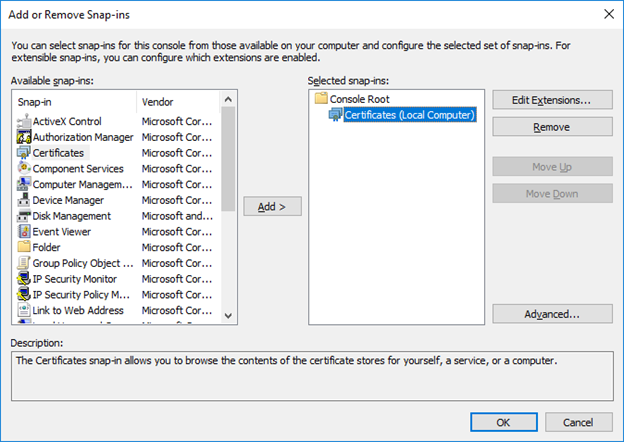
We click “OK”, and then we can add the certificate by expanding Certificates > Trusted Root Certification Authorities > Certificates. We right-click on Certificates, and under All Tasks, select Import. We browse for the file and make sure it is stored in Trusted Root Certification Authorities.
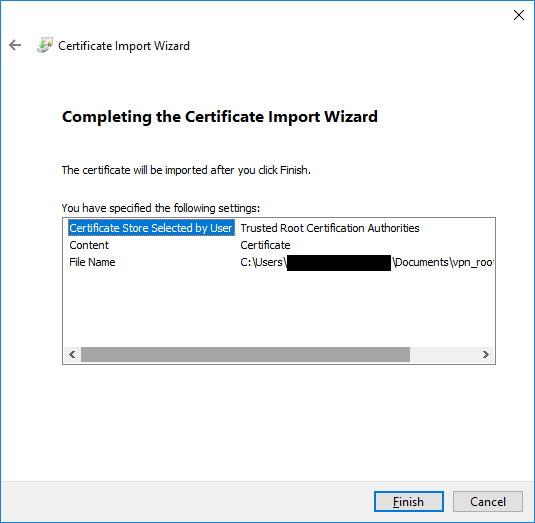
If the import is successful, we will see our certificate at the bottom. Then it will be time to make the connection.
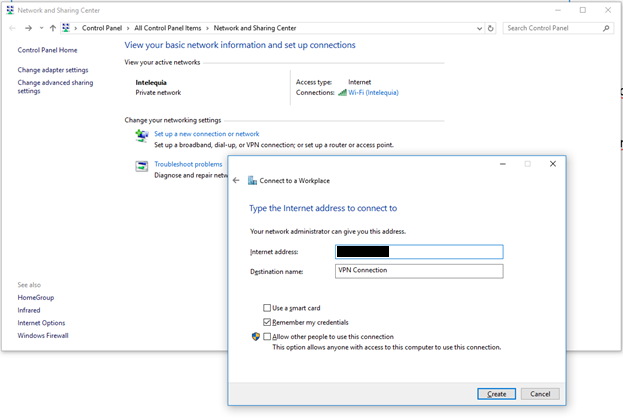
We navigate to the Network and Sharing Center and configure a new VPN connection to a workplace using our Internet connection.
If the import is successful, we will see our certificate at the bottom. Then it will be time to make the connection.
We navigate to the Network and Sharing Center and configure a new VPN connection to a workplace using our Internet connection.
If we click Create, the connection is created, but it does not start because we have not entered the credentials yet.
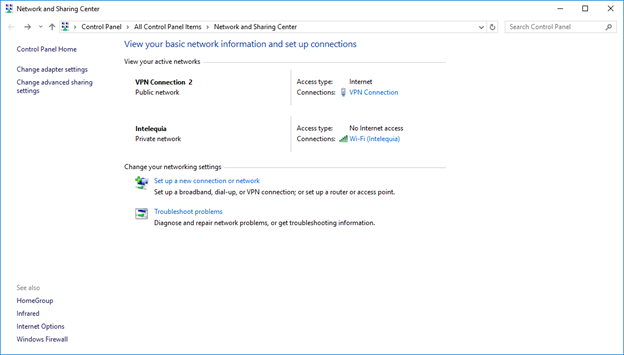
On the left, we select Change adapter settings and double-click the newly created connection. Again, we click on the connection, then Connect, and it will prompt us for credentials.
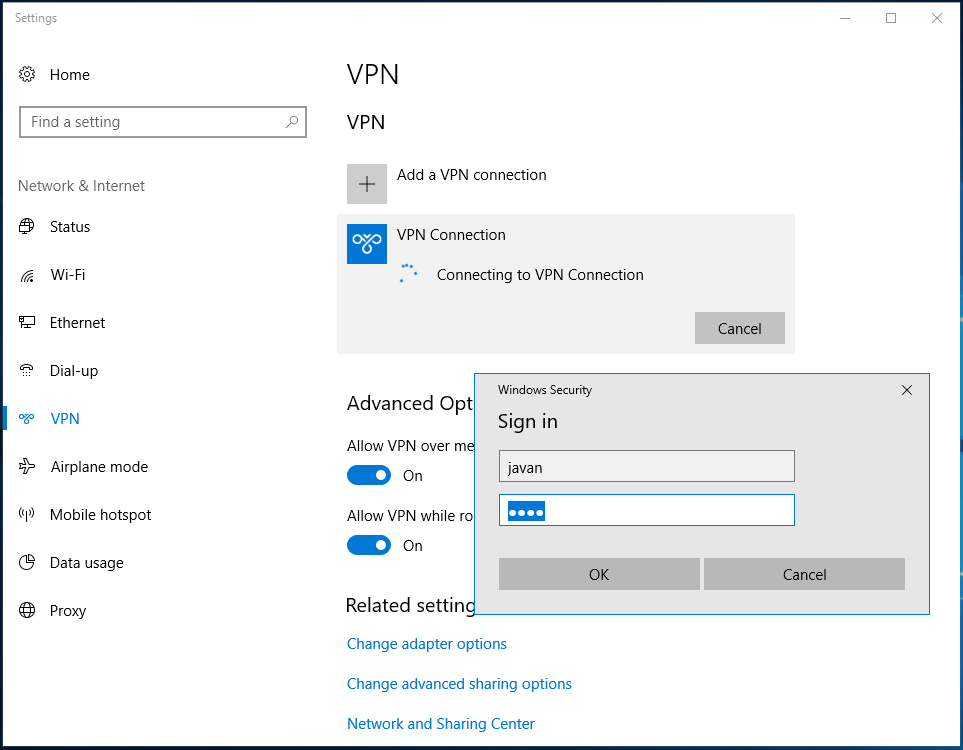
If everything goes well, we will see that we are connected.
And of course, we can access the Windows Server 2016 server on Azure again using Remote Desktop.
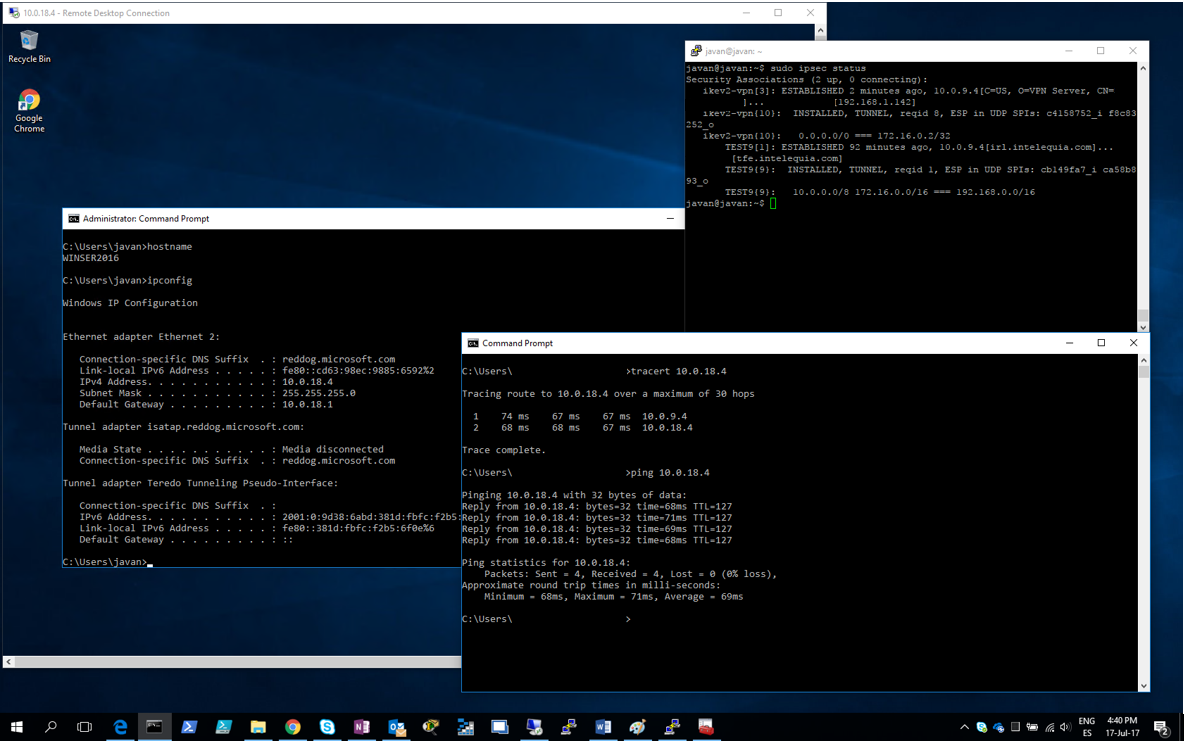
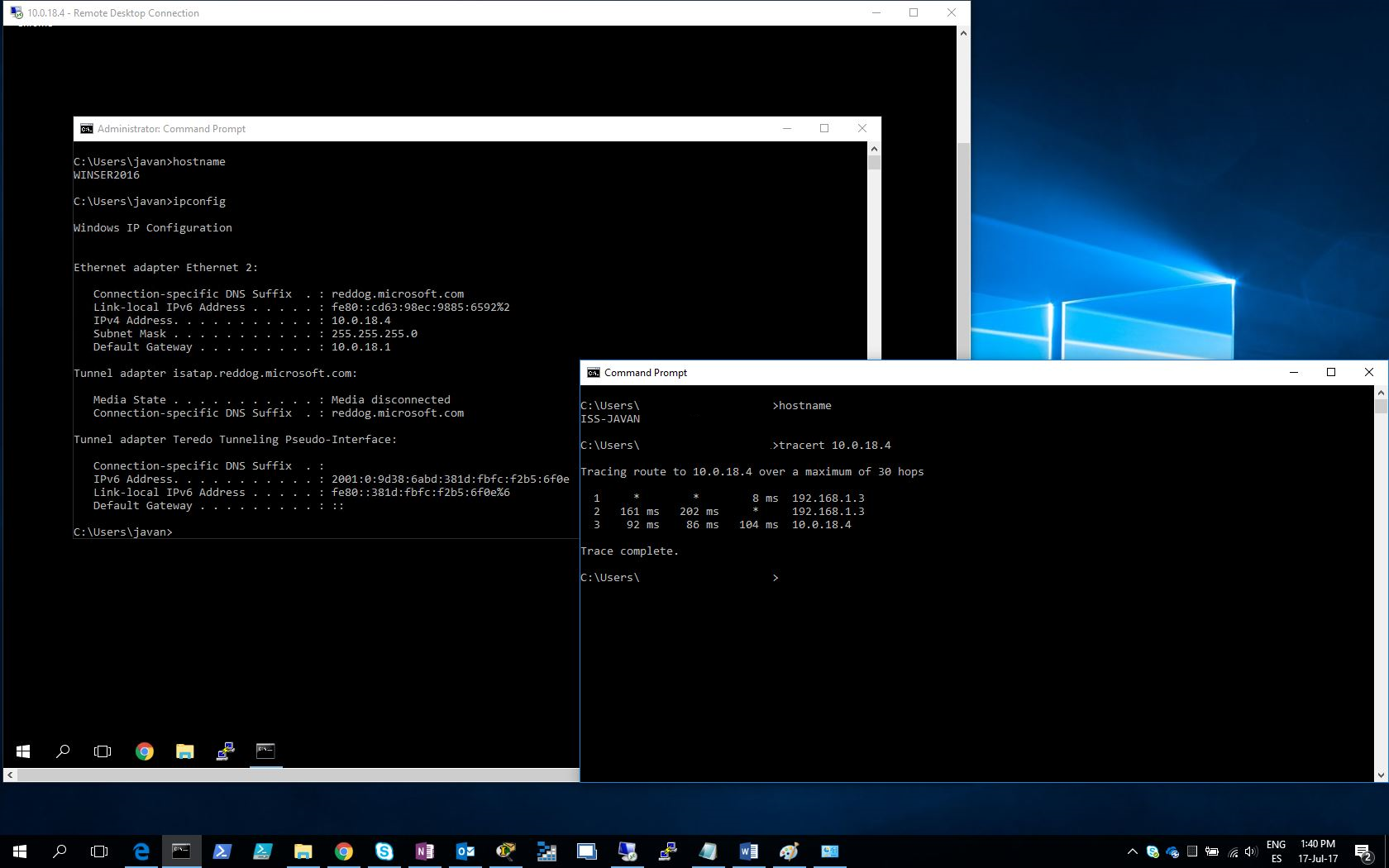
Above, we could see, in a remote terminal session with the strongSwan server, that it assigned us the IP 172.16.0.2 so that we could interact with Azure resources. Below, we had executed the command tracert 10.0.18.4 to see the route the machine uses to reach the Windows Server.
Although it was not possible to make connections with Android devices using the strongSwan mobile client, we assume they should be feasible. In any case, even the program documentation admits that errors are common in the client.
This particular technique allows interconnecting all the offices a company/organization may have, and also enables connections from anywhere, all while encrypting communications and making interception attempts difficult.
The host-to-site method was so powerful in this case that it even allowed access to both Azure resources and on-premises resources from locations other than the workplace or Azure. This way, we could start Remote Desktop sessions to any on-premises host using the Azure connection (because the previous site-to-site connection was still active).
It should be noted that we were also able to communicate with host-to-site resources located several kilometers apart.
SOURCES CONSULTED