Azure Automation allows you to automate frequent, time-consuming, and error-prone cloud administration tasks. The Azure Automation service helps you focus more on work that adds real business value. Using Windows PowerShell scripts and workflows, known as Runbooks, we can work smarter, controlling the creation, deployment, monitoring, and maintenance of Azure resources and third-party applications.
In this article, I will focus on explaining the actions and tasks performed by the script below. For instructions on configuring it in Azure Automation, see our colleague David Rodriguez Hernández’s blog, which provides a detailed implementation guide.
PowerShell Workflows for Advanced Automation
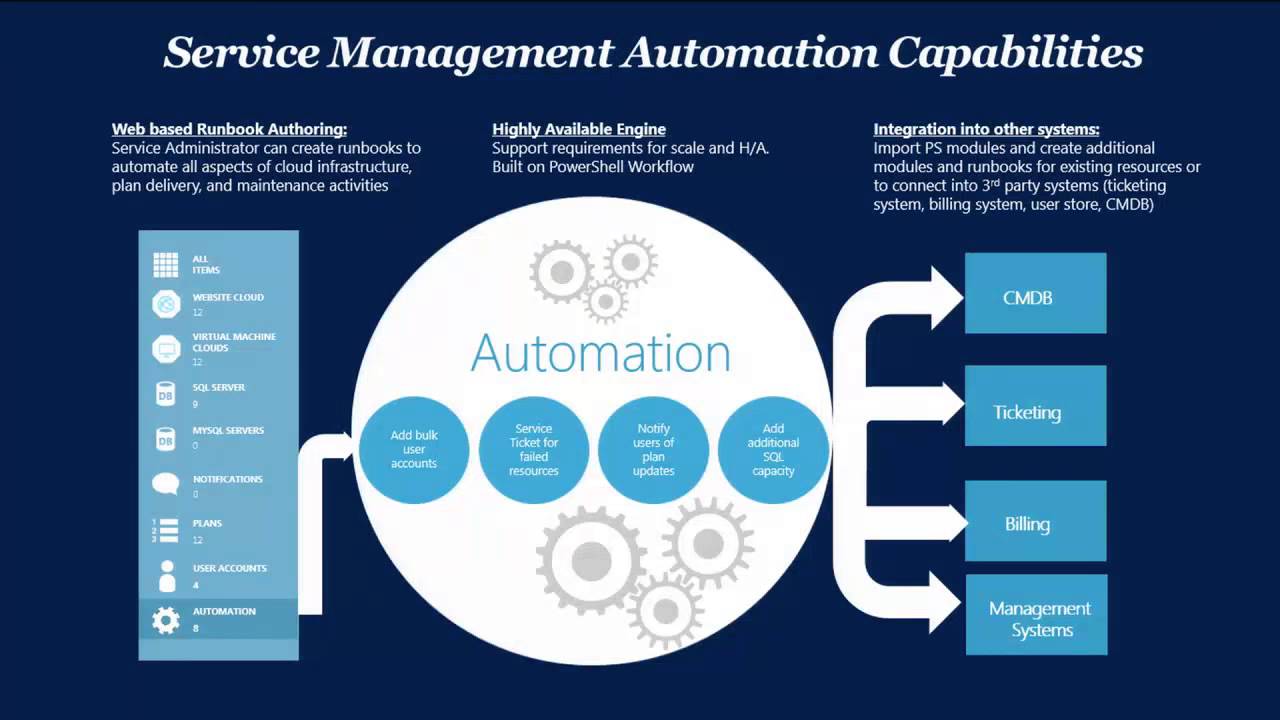
We use PowerShell Workflows to execute sequences of tasks, allowing administrators and developers to leverage automation features and the full flexibility of Windows PowerShell.
In a standard script, the entire code runs in the same execution environment, which defines available commands, variables, and other elements. In a workflow, each activity can execute in a different environment. Variables created at the top level are available throughout the workflow, but not outside it.
This script allows us to index database tables based on fragmentation percentage, adjust the database tier for faster and smoother performance, and send a log upon task completion.
Key script actions in four sections
-
Upgrade database performance tier – Temporarily raise the database tier to ensure fast and efficient indexing.
-
Check fragmentation and index tables – Assess table fragmentation and perform indexing.
-
Restore database performance tier – Reset the database tier to the level specified in the input parameters.
-
Send email notifications – Optionally send a notification with errors and current database performance status.
Note: You must create database and SMTP server credentials in your Azure subscription before executing the script.
Script input parameters
-
SqlServerName – SQL server name; the script appends the full path automatically.
-
DatabaseName – Name of the database to index.
-
SQLCredentialName – Identifier of pre-created database access credentials.
-
Edition – Azure SQL Database edition for indexing (Basic, Standard, Premium).
-
PerfLevel – Azure SQL Database performance level for indexing (Basic, S0, S1, S2, P1, P2, P3).
-
FinalEdition – Azure SQL Database edition to restore after indexing (Basic, Standard, Premium).
-
FinalPerfLevel – Performance level to restore after indexing (Basic, S0, S1, S2, P1, P2, P3).
-
FragPercentage – Optional. Fragmentation percentage threshold for indexing (default 10%).
-
SqlServerPort – Optional. SQL Server port (default 1433).
-
RebuiltOffline – Optional. Retry offline if online indexing fails (default false).
-
Table – Optional. Index a specific table (default indexes all tables).
-
SMTPServer – Optional, required for notifications. SMTP server address for sending emails.
-
SMTPCredentials – Optional, required for notifications. SMTP credential identifier.
-
FromMail – Optional, required for notifications. Sender email address.
-
ToMail – Optional, required for notifications. Recipient email address.
Changing the database tier
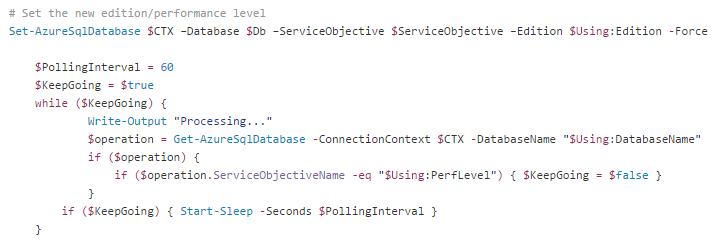
This section of the script resizes the SQL server. We focus on two commands: Set-AzureSqlDatabase to modify SQL configuration, and Get-AzureSqlDatabase to retrieve current database properties.
A loop checks when the tier change is complete before continuing the execution.
Checking fragmentation and indexing
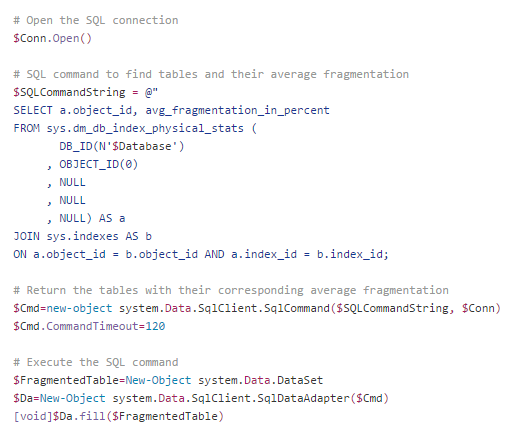
The script analyzes table fragmentation using a connector object created with server credentials.
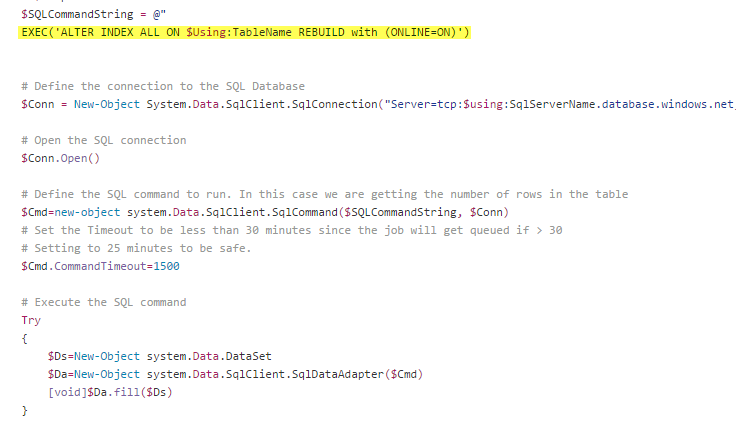
After the check, it indexes each table using the appropriate SQL commands.
Sending notifications after the script ends
Optionally, the script can email a log upon task completion. Fill in the designated parameters for email notifications:
Send-MailMessage-To "$Using:ToMail" -Subject $subject -Body "$Using:Body" -UseSsl -Port 587 -SmtpServer "$Using:SMTPServer" -From "$Using:FromMail" -BodyAsHtml -Credential $Cred
You can download this script from the Intelequia GitHub repository for full access and implementation.