Surely more than one person has struggled to coordinate vacation dates within a company. Except for companies that force employees to take holidays when they want or because there’s no other choice—as is often the case in education—usually employees coordinate with each other and a supervisor to agree on their much-needed time off. But this is where questions arise: How do I know which dates are available? Do I have to ask my colleagues one by one to schedule my leave?
In my opinion, the best solution is to automate this process and make all the information accessible to everyone in the company quickly and from any location. This is where SharePoint Online comes in.
In this guide, we will focus on creating a workflow for leave requests, allowing employees to fill out a simple form while their supervisor can approve or reject the request.
We will divide this guide into two parts. In the first part, we’ll focus on creating a content type to better organize the information related to requests. In the second part, we will create a workflow associated with this content type.
Note: A content type is a collection of data that helps organize and manage information in SharePoint lists and libraries. A content type consists of site columns, which represent specific data types (name, address, email, etc.).
Creating site columns in SharePoint Online
To create the site columns that will define the structure of our content type, go to Site Settings via the Settings menu.

Once there, locate Site Columns under the Designer Galleries section and click Create.
Note:
By default, newly created columns are added to the Custom Columns group. For the first column, create a new group; for the rest, select this group from the dropdown.
For our example, we will create five columns in the "Leave Request" group:
-
Leave Details (single line of text): Brief description of the request
-
Leave Type (choice): Dropdown with different leave types
-
From (date): Start date of leave
-
To (date): End date of leave
-
Total Days (calculated): Difference in days between From and To

Creating the content type in SharePoint
After creating the site columns, we create the content type and associate these columns. Go to Site Settings and under Designer Galleries, access Site Content Types.
Click Create and fill out the form, paying attention to three fields:
-
Parent Content Type: Since we’re creating a list, select "List Content Types"
-
Parent Content Type: Select "Item"
-
Group Name: Use "Leave Requests" to easily locate the content type
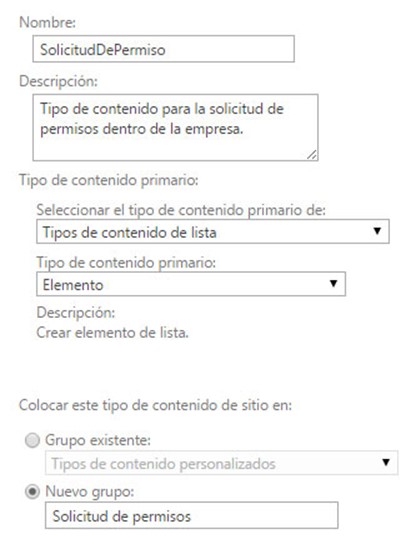
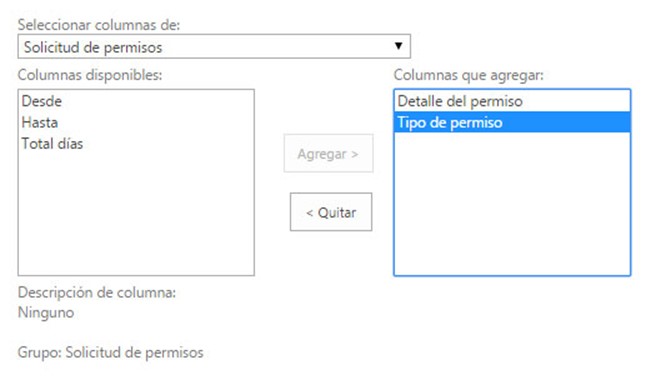
Once the content type is created, assign the site columns created earlier. Access the content type and, at the bottom of the Columns section, click Add from existing site columns. Filter by the group and add all five columns. Click OK to associate them with your content type.

Associating the content type with a list in SharePoint Online
Create the list to associate the content type. Go to Site Settings, then Site Libraries and Lists, and select Add an App → Custom List. Name the list Leave Requests.
Once the list is created, go to List Settings. Locate Content Types. If not visible, enable it via Advanced Settings → set "Allow management of content types" to Yes.


Once the list is created, go to List Settings. Locate Content Types. If not visible, enable it via Advanced Settings → set "Allow management of content types" to Yes.
Next, click Add from existing site content types and add your LeaveRequest content type. You will see two types of content associated with columns. Since LeaveRequest inherits from "Item," delete the default type to keep only your custom content type.
With this, we’ve completed the first step in creating a leave request workflow in SharePoint Online. In the next part, we will build the approval workflow and see how, once approved, it automatically adds an event to the SharePoint calendar.