Before diving into workflow development, it is important to understand what SharePoint managed metadata is, as it will be essential for configuring the examples provided in this post.
What is managed metadata in SharePoint?
anaged metadata is a tool that allows us to classify and expand information about files stored in SharePoint. Thanks to this, we gain organizational capabilities such as creating filters and views that help users navigate content more quickly and efficiently.
To learn more about creating metadata in SharePoint, you can consult the following page.
Creating workflows in SharePoint
Workflows in SharePoint Designer add logic to a site or application without the need to write custom code. Using the workflow designer, we can create rules that associate conditions and actions to list and library items, so changes in these items trigger actions in the workflow.
To create a workflow, you must have SharePoint Designer installed and connected to your site on your computer. You can obtain this tool for free at the following link.
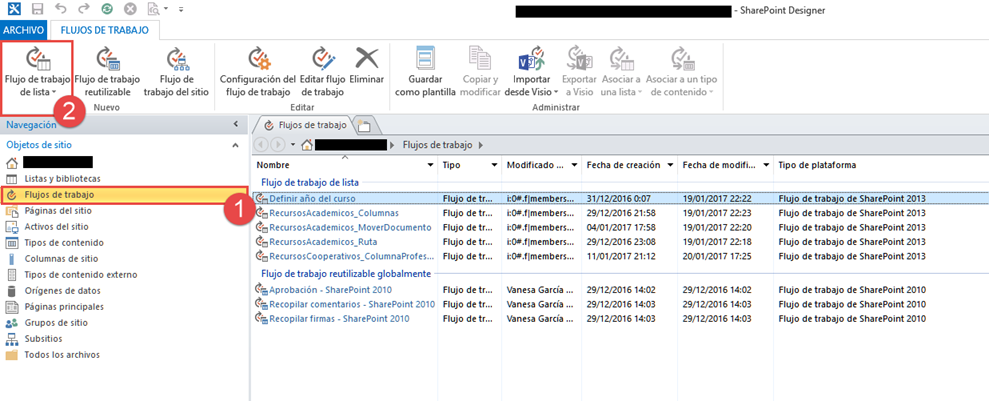
We open SharePoint Designer and click on "Workflows" in the menu on the left side of the window. In the Workflows menu, we expand List Workflow.
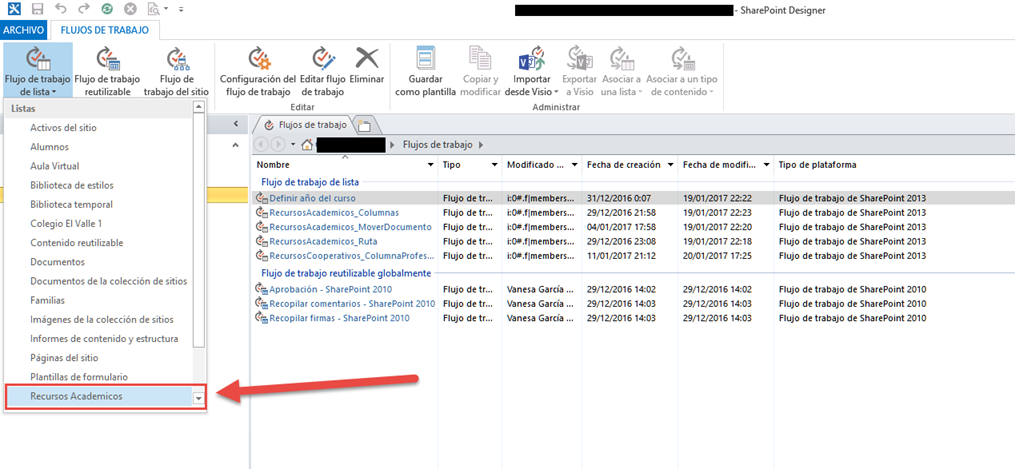
We select the list or library from which we want to create the workflow.
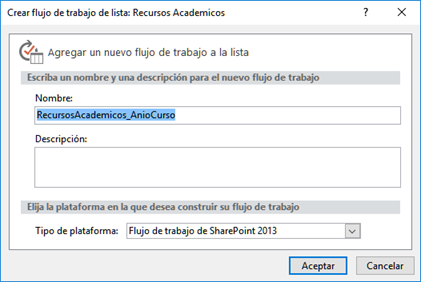
Next, we enter the name, description, and platform type of the workflow we are creating and click OK.
Then, we define small actions that we can add to our workflow.
To create local variables, click on Local Variables in the upper-right menu. A window opens where we can add local variables to the workflow.
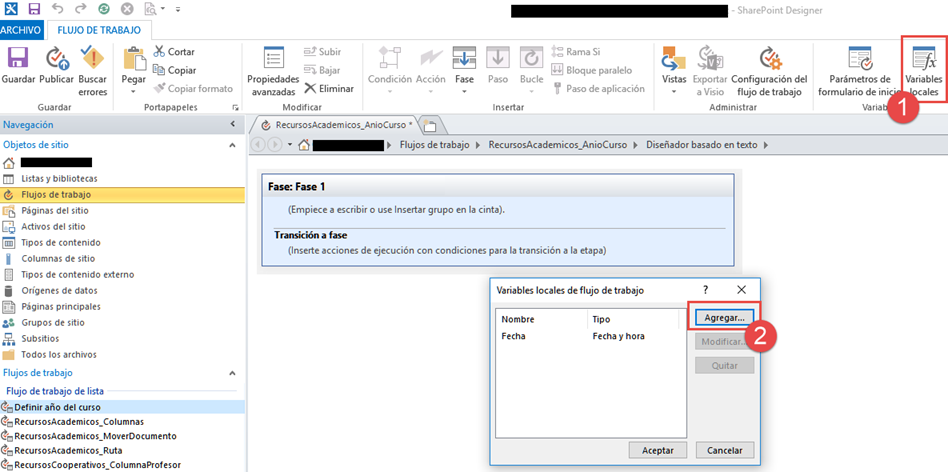
Using the Stage button, we can add stages to the workflow. Action allows assigning values to variables, performing calculations, substring operations, etc. Condition allows adding conditions to the workflow. With these tools, a workflow can be created like the following example, which defines the metadata year based on the workflow execution date.

In the following example code, we have established the local variables "date", "month", and "year". In the date variable, the current date is assigned using the system variable Today. In month and year, the corresponding parts are copied based on the date variable. That is, the month and year are extracted from the date variable and added to the month and year variables.
Next, we have the following condition: if the month variable value is greater than 7, the code executes the calculation adding year + 1 to the variable year_2. The local variable year1 is assigned the value of year, and year2 is assigned the value of year_2.
If the condition is not met, the calculation year - 1 is added to the variable year_1, year1 receives the value of year_1, and year2 receives the value of year. Finally, the year metadata is assigned the string [variable_year1] + / + [variable_year2]. For example, "2016/2017". Once the workflow is created, it is saved and then published.
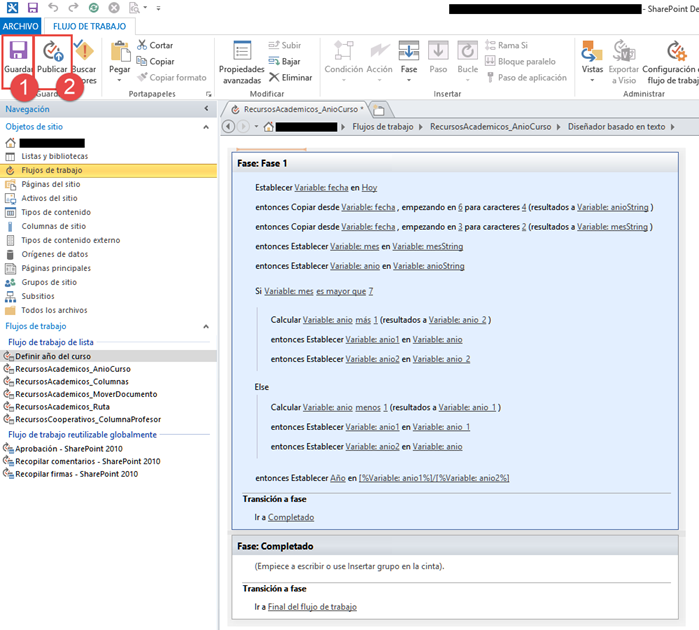
Publishing and testing the workflow in Microsoft SharePoint
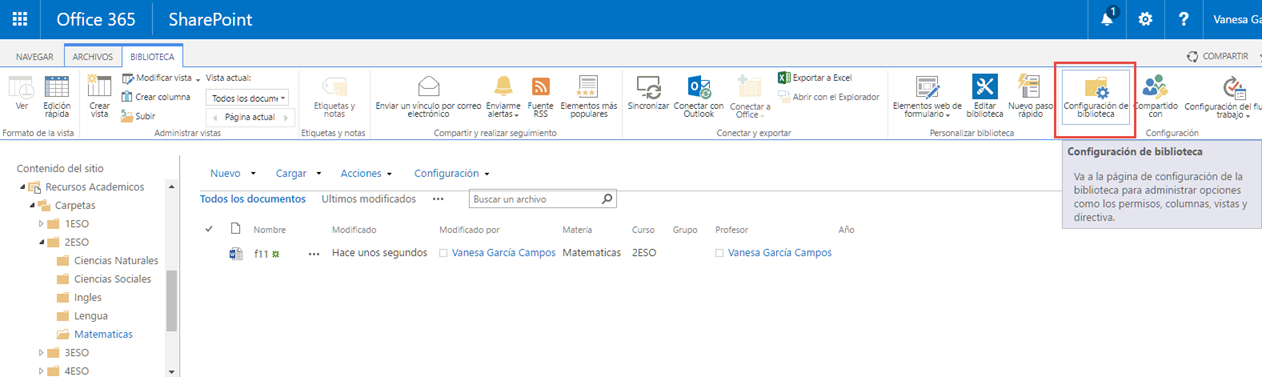
To view the workflow added to the library, go to the library and click Library Settings.
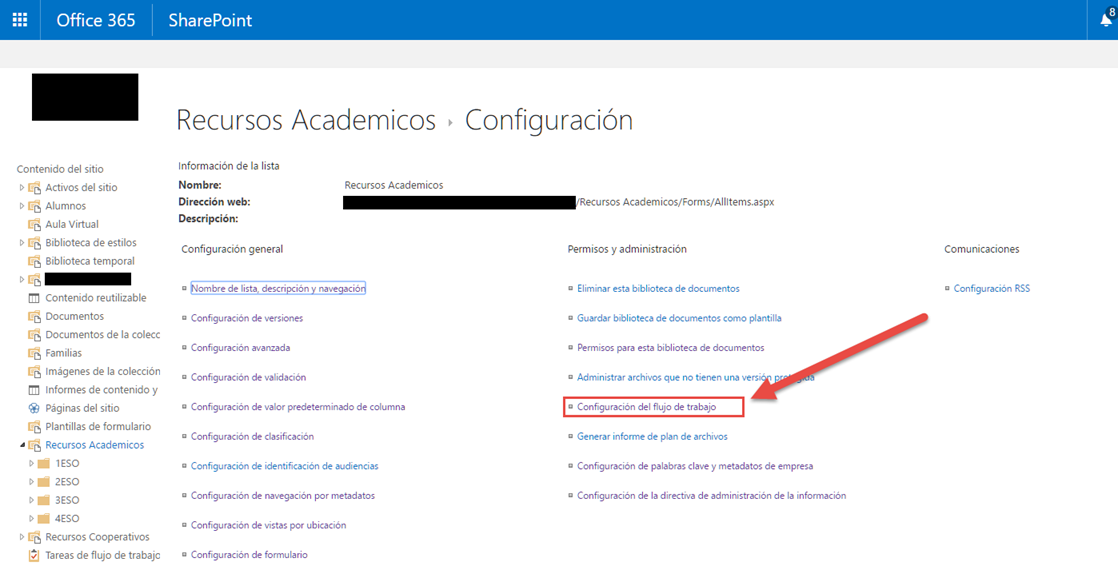
On the new page, click Workflow Settings.
On the next page, we see that by default, the workflow has been added as This List type.
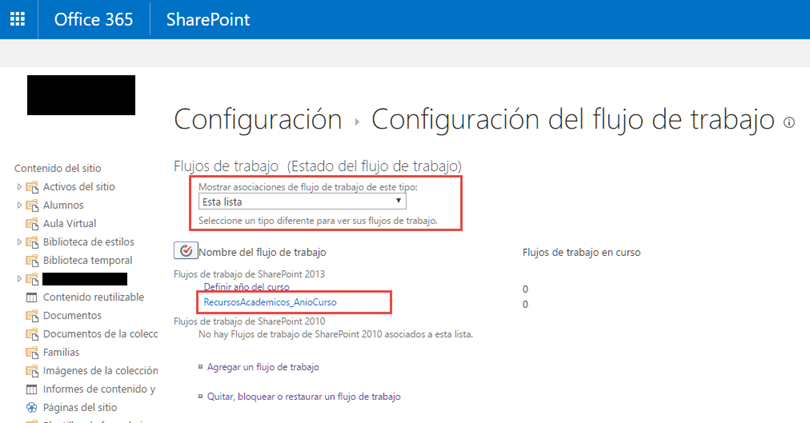
Clicking the resource name opens an editing form with the selected resource’s characteristics. Here, we can configure automatic workflow execution. As seen, the workflow is also added as a template.
Note: This means that when we create a workflow, a template is actually created and then added as a workflow on the SharePoint page with default configuration. Deleting a workflow on the SharePoint page only removes its availability and automatic execution. The "workflow" in SharePoint Designer appears on the page as a template.
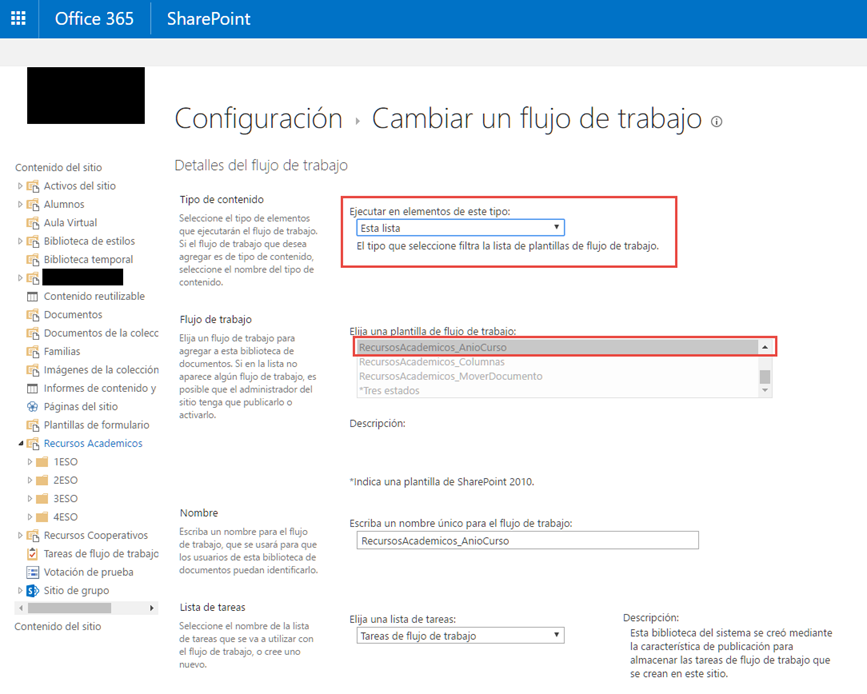
Advanced configuration and manual execution in SharePoint Online
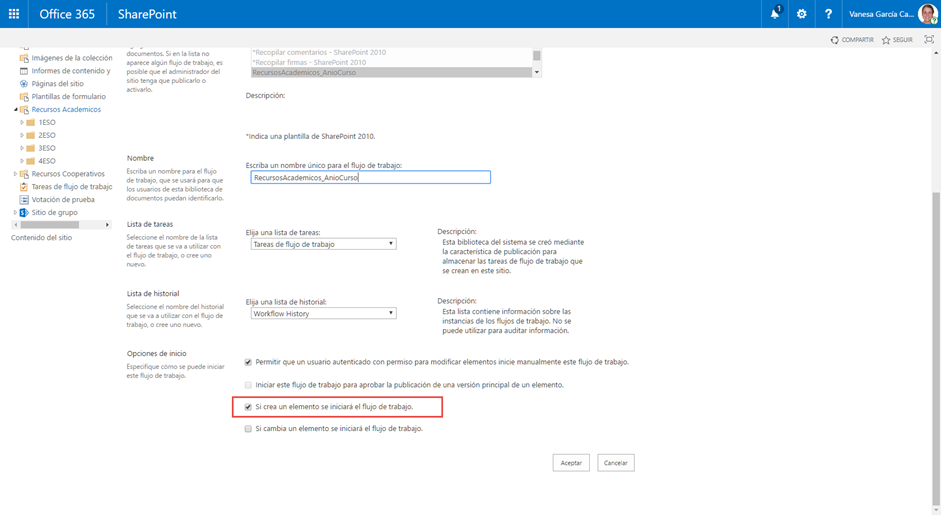
Here we have the option to modify the workflow to run automatically when a document is uploaded. Check the box "Start workflow when an item is created" and click OK.
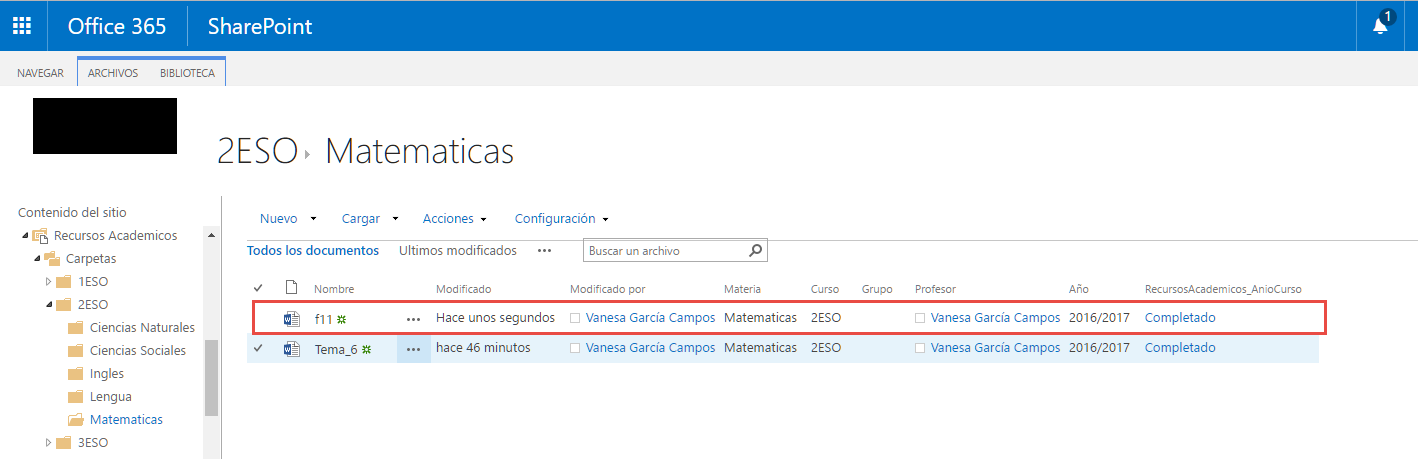
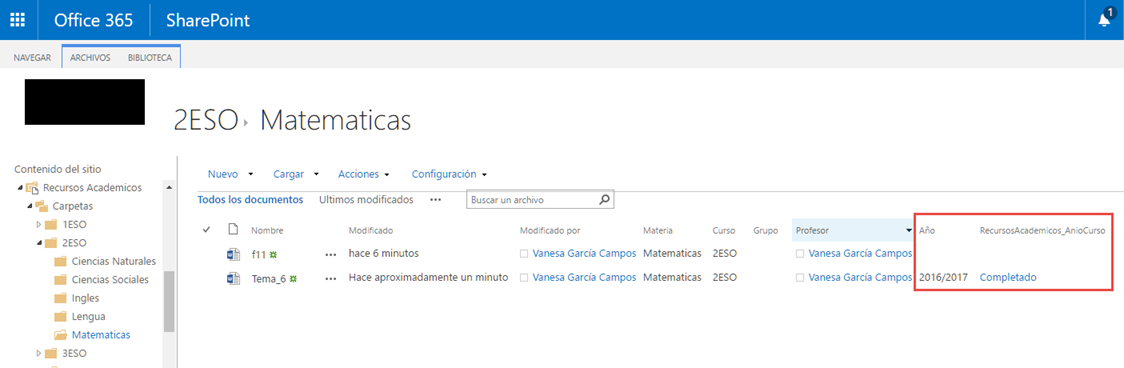
Finally, we test the workflow by dragging a file to the library and verifying that the column with the workflow name contains the last stage of the workflow. If it doesn’t appear immediately, refresh the page to see the changes.
If the workflow is configured for manual execution, you can run it manually by clicking the three dots on the file, accessing Advanced → Workflows.
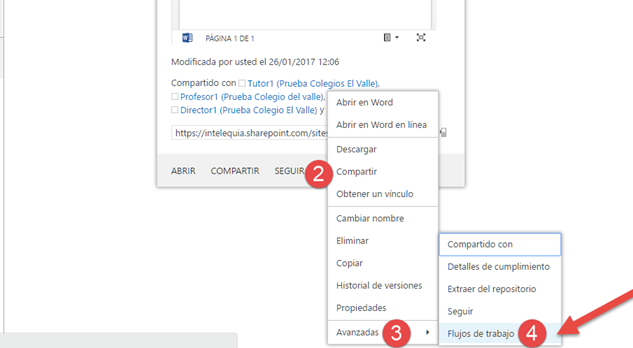
Next, the workflows configured for manual initiation will be displayed. Click on the workflow name to start it.
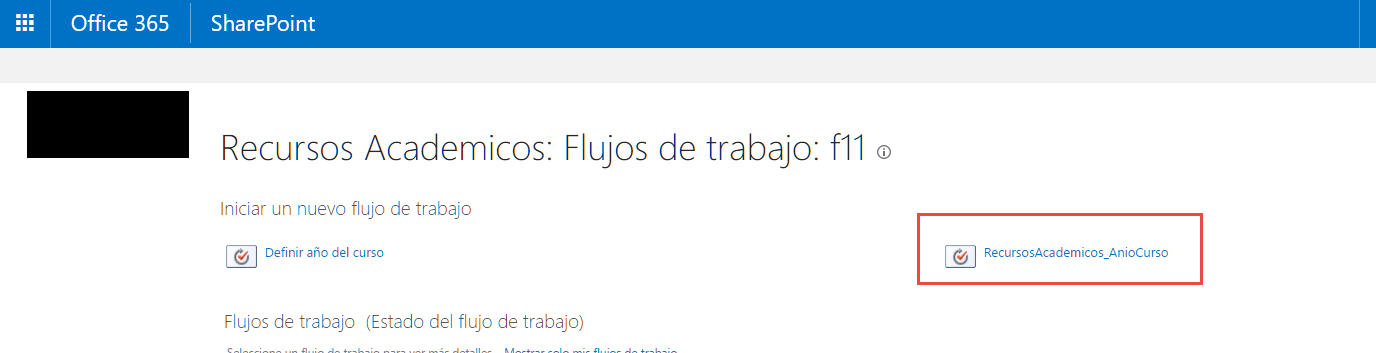
Finally, on the next page, we can see that the workflow has executed successfully.