We’re kicking off the first DunkedNetNuke post by talking about one of the features added starting with DNN version 6: log4net. This tool may sound familiar as it is a port of the excellent Apache log4j™ framework to the Microsoft environment, leveraging all the new features provided by .NET to offer a robust system for generating and sending logs to multiple destinations.
To configure this feature, we just need to access the DotNetNuke.log4net.config file, where we can view the output for all the logs we want to create. By default, it includes the generation of logs for all error records in the web application, directed to Portals/_default/Logs. Therefore, if we are going to use a different logging system, it would be advisable not to store these records by disabling this default appender and changing the level value to "OFF".
<?xml version="1.0" encoding="utf-8" ?>
<log4net>
<appender name="RollingFile" type="log4net.Appender.RollingFileAppender">
<file value="Portals/_default/Logs/" />
<datePattern value="yyyy.MM.dd'.log.resources'" />
<rollingStyle value="Date" />
<staticLogFileName value="false" />
<appendToFile value="true" />
<maximumFileSize value="10MB" />
<maxSizeRollBackups value="5" />
<lockingModel type="log4net.Appender.FileAppender+MinimalLock"/>
<layout type="log4net.Layout.PatternLayout">
<conversionPattern value="%date [%level] %logger - %message%newline" />
<locationInfo value="true" />
</layout>
</appender>
<root>
<level value="Info" />
<appender-ref ref="RollingFile" />
</root>
<logger name="DotNetNuke.Services.Localization.LocalizationProvider">
<level value="ERROR" />
</logger>
</log4net>
As you can see, each log output is generated through an appender, where its configuration is defined and then used by a logger. You can create as many appenders and loggers as different outputs you wish to generate.
Now let’s add a new appender to configure a constant UDP broadcast output that shows only application errors.
We create the new appender:
<appender name="UDPBroadcast" type="log4net.Appender.UdpAppender">
<param name="RemoteAddress" value="127.0.0.2" />
<param name="RemotePort" value="877" />
<param name="Threshold" value="ALL" />
<layout type="log4net.Layout.XmlLayout">
<locationInfo value="true" />
</layout>
</appender>
We assign it inside the root tag or create a dedicated logger for it:
<level value="info" />
<appender-ref ref="RollingFile" />
<level value="ERROR" />
<appender-ref ref="UDPBroadcast" />
As you can see, we have defined a different log generation level "ERROR" because we are only interested in capturing application errors, not all the information generated by our DNN instance—especially since it will be sent as a continuous data stream over the network. This practice is particularly useful during development phases, as it allows us to constantly monitor the application logs that matter most.
To receive and visualize the stream, we can use any broadcast consumer application. In this case, we’ll use log4view with the appropriate configuration.
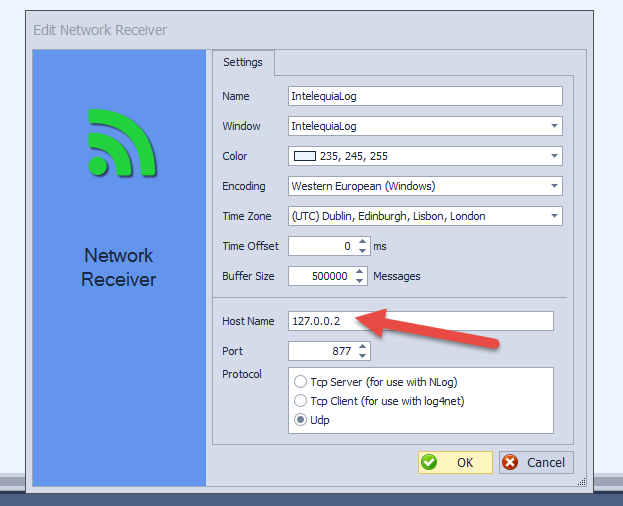
If you’re using Windows 7 or later and testing locally, use the loopback IP ending in 2—one of those IPv6 quirks.
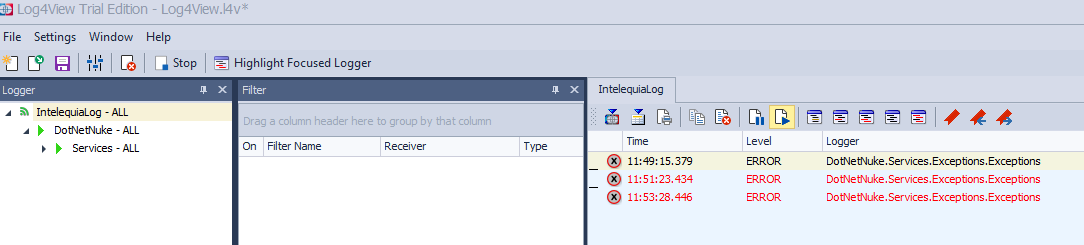
With this setup, your receiver will be ready and will start capturing the errors sent via the UDP broadcast generated by log4net.
Next, we will configure the sending of critical errors via email by adding another appender:
<appender name="SmtpAppender" type="log4net.Appender.SmtpAppender">
<to value="correo@destino.com" />
<from value="correo@envío.com" />
<subject type="log4net.Util.PatternString" value="Fatal Error Host: %property{log4net:HostName} Error: %appdomain" />
<smtpHost value="smtp.tuservidorsmtp.com" />
<authentication value="Basic" />
<port value="587" />
<username value="Usuario" />
<password value="Contraseña" />
<bufferSize value="1" />
<EnableSsl value="false"/>
<lossy value="true" />
<evaluator type="log4net.Core.LevelEvaluator">
<threshold value="ALL"/>
</evaluator>
<layout type="log4net.Layout.PatternLayout">
<conversionPattern value="%date [%level] %logger - %message%newline" />
</layout>
</appender>
<root>
<level value="ALL" />
<appender-ref ref="RollingFile" />
<level value="ERROR" />
<appender-ref ref="UDPBroadcast" />
<level value="FATAL" />
<appender-ref ref="SmtpAppender" />
</root>
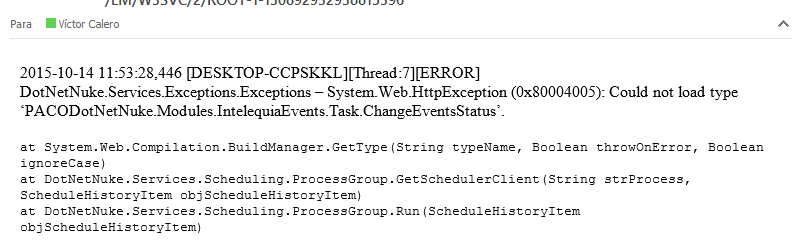
This way, whenever a critical error occurs, you will quickly receive an alert containing key information for rapid resolution.
The previous example was configured for an SMTP server using basic authentication over TLS. However, if you want to send email from a personal Gmail account, you would need to enable SSL and allow Gmail to use less secure sources for sending mail, using the following configuration:
<appender name="SmtpAppender" type="log4net.Appender.SmtpAppender">
<to value="receptor@intelequia.com" />
<from value="usuario@gmail.com" />
<subject type="log4net.Util.PatternString" value="Fatal Error Host: %property{log4net:HostName} Error: %appdomain" />
<smtpHost value="smtp.gmail.com" />
<authentication value="Basic" />
<port value="587" />
<username value="usuario@gmail.com" />
<password value="contraseña" />
<bufferSize value="1" />
<EnableSsl value="true"/>
<lossy value="true" />
<evaluator type="log4net.Core.LevelEvaluator">
<threshold value="ALL"/>
</evaluator>
<layout type="log4net.Layout.PatternLayout">
<conversionPattern value="%date [%level] %logger - %message%newline" />
</layout>
</appender>
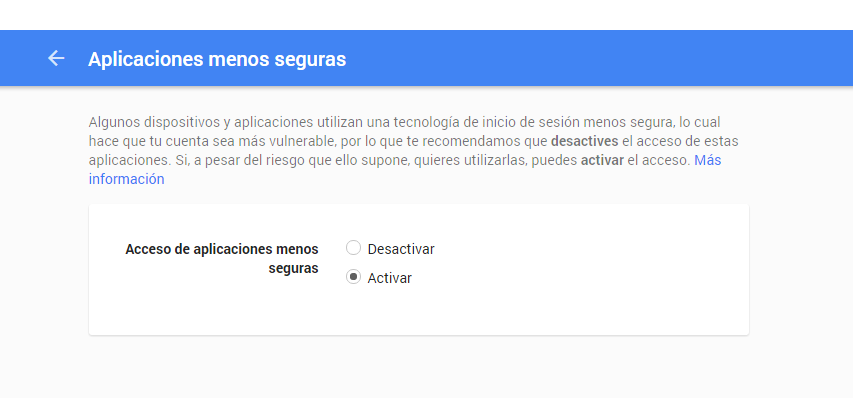
You must also enable the use of less secure apps; otherwise, your emails will not reach Gmail’s SMTP server.
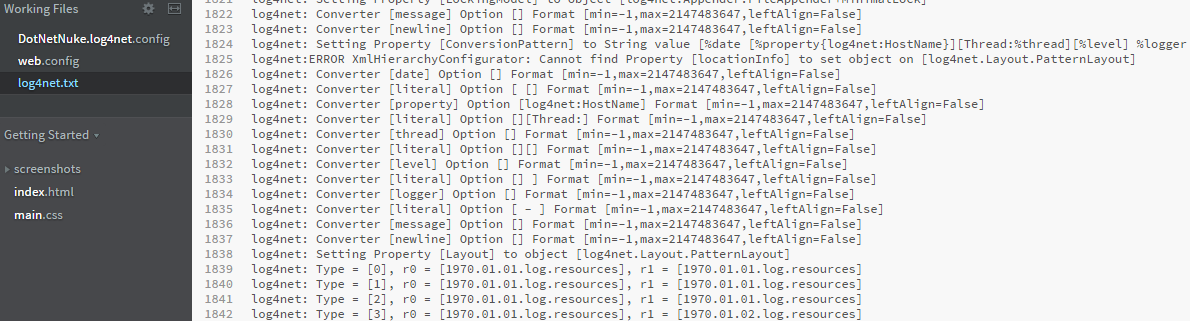
Finally, in many cases you may need to debug log4net itself. To do so, you can generate a log of its internal activity by adding the following lines to your application’s web.config file inside the <configuration></configuration> section:
<system.diagnostics>
<trace autoflush="true">
<listeners>
<add
name="textWriterTraceListener"
type="System.Diagnostics.TextWriterTraceListener"
initializeData="C:\websites\miweb.dnndev.me\log4net.txt" />
</listeners>
</trace>
</system.diagnostics>
This will create a new log file where you can observe the processes carried out by log4net and more easily troubleshoot any potential issues.