Today’s article will be quick and easy to follow, but extremely useful if you want to prevent losing your work—or that of your teammates. To avoid information loss and the need to redo tasks, using source control is essential—even when working alone.
Below, we’ll see how to add Git to Sublime Text in a few simple steps. But first, here’s a list of requirements to achieve today’s goal.
Requirements:
Ready? Let’s get started!
Installing Git
First, you need to have Git installed on your computer. Obvious, but worth mentioning. To do this, go to the Git website and download the latest version for your operating system.
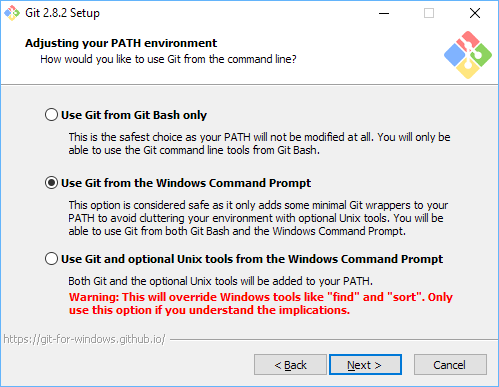
If installing Git on Windows, make sure to select “Use Git from the Windows Command Prompt”. For everything else, default settings are sufficient.
Note:
By default, Git installs in C:\Program Files\Git and adds C:\Program Files\Git\cmd to the Path environment variable. Because this path contains spaces, running Git from Sublime may fail.
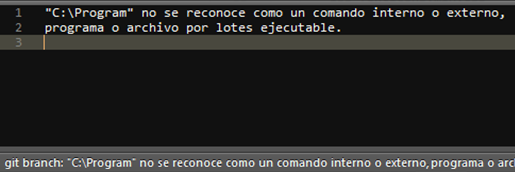
To avoid this, it’s recommended to install Git in C:\Git.

To verify the installation, open the command line and run:
git --version
If successful, your current Git version will display.
Installing Git for Sublime
To install the Git plugin for Sublime, add it via Package Control. If you don’t have Package Control installed, open the Sublime console with Ctrl+Shift+C (or View > Show Console) and paste the Python code from the Package Control installation page for your Sublime version.
Once Package Control is installed, open the command palette (Ctrl+Shift+P on Linux/Windows, Command+Shift+P on macOS), select “Package Control: Install Package”, and wait a few seconds.
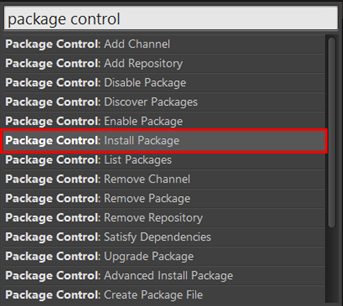
Search for “git” and select the plugin you want to install. In this guide, the plugin by @kemayo is used.
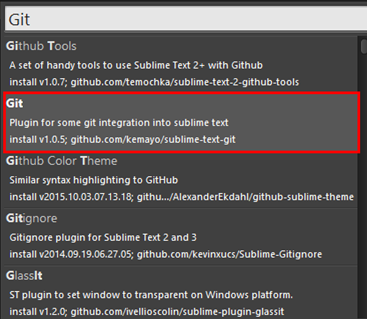
Con esto ya podríamos usar Git desde Sublime sin depender de la consola, algo que agiliza un poco el trabajo.
After installation, you can use Git directly from Sublime without relying on the terminal, streamlining your workflow. To explore available commands, open the command palette and filter by “Git”, or consult the project wiki for detailed usage. This plugin offers powerful functionalities that greatly improve efficiency.
Installing GitGutter
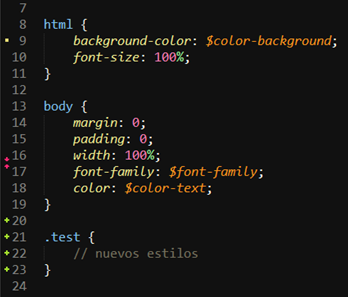
GitGutter is a plugin that displays a small icon next to the line number to indicate whether a line has been modified, deleted, or is new.
To install GitGutter, repeat the same steps as installing the Git plugin:
-
Open the command palette: Ctrl+Shift+P
-
Search for GitGutter and install it
Once installed, editing a project under source control will show indicators similar to this:
For more details about GitGutter features, visit GitGutter.
And that’s it for today’s guide! I hope you find it useful for improving your workflow and keeping your code safely under version control.