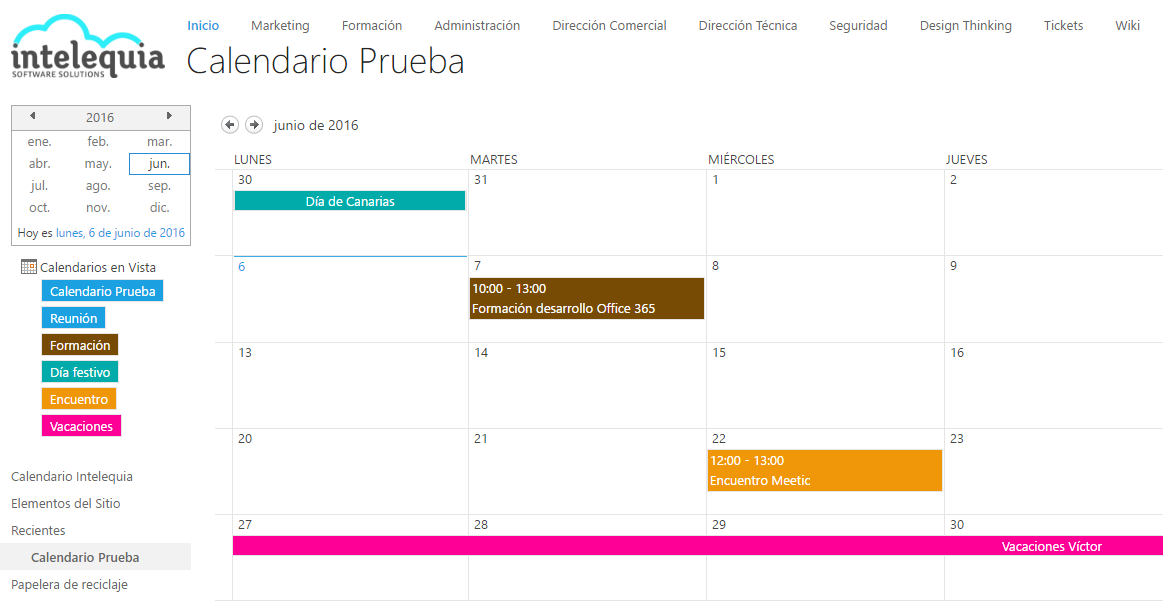
Today, I’ll show you how to have all the events you need in a single Sharepoint Online calendar view, color-coded for easy distinction. Along the way, we’ll also learn how to use columns and views in combination with the calendar overlay feature.
STEP 1: Define event categories in Sharepoint
Once the calendar is created by adding the corresponding app to your site contents, you have the option to either create a new column with the event types you want to define or use the default “Category” column included when adding this app.

This column already includes some of the most common event categories, so in this case, we will edit it in the calendar settings to fit our specific needs.
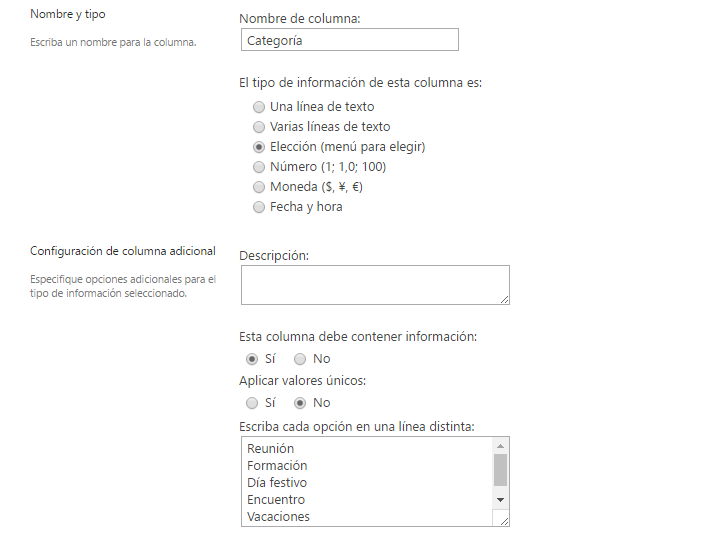
After finishing the changes in the column, make sure to save them by clicking the corresponding button.
STEP 2: Create views filtered by category in Sharepoint Online
Once the column with event categories is ready, we can create filtered views for each category. Go back to the calendar settings page and scroll down to the views administration panel.
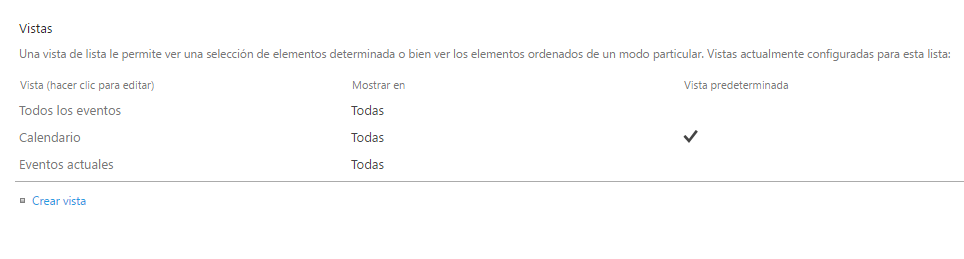
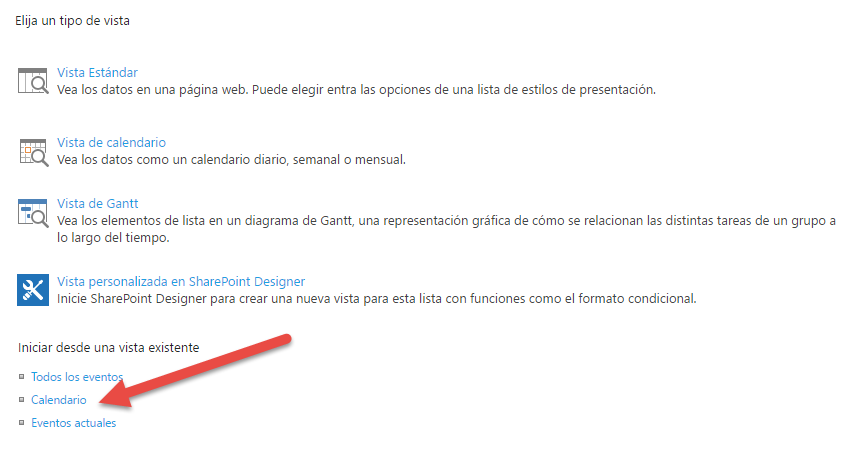
Click Create View, and in this menu, select Create a view from your existing calendar view. It is essential to start from this view and not from the other default views whenever creating a category-filtered view.
When creating the view, specify that only items matching one of the fields in the column should be displayed. In this first example, we are creating a view for “Training” events, so we select that only calendar events matching this category field will be shown.
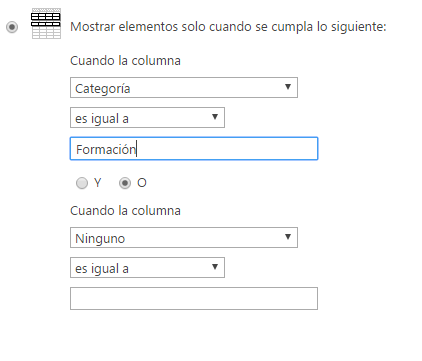
Repeat this process for each category in the column to create all the filtered views.
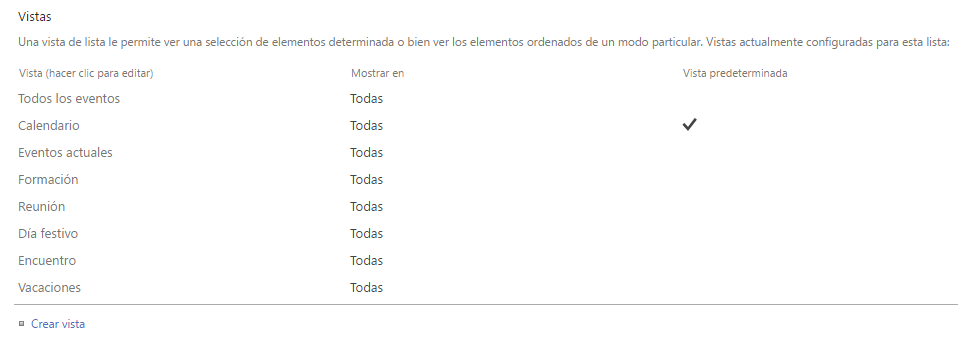
STEP 3: Create the base view in Microsoft Sharepoint
Next, create a view like the previous ones to serve as the base for overlaying other views. Create a new view, check Default View, select the Category column, but do not assign it a value.
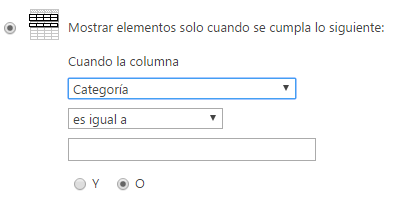
This prevents possible duplication errors, as the base view will never match any events created with a selected category field.
STEP 4: Add calendar overlays
In this final step, create calendar overlays on the base view by accessing the Overlays tab in the calendar menu.
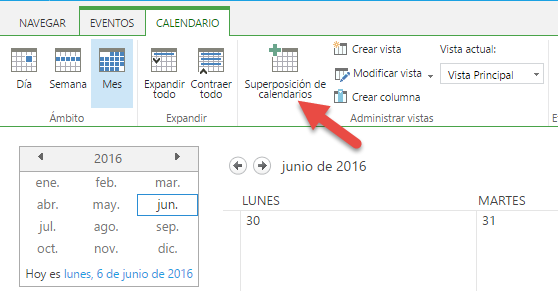
Click New Calendar and fill in the overlay parameters. Here is where you can link each category to its corresponding color.
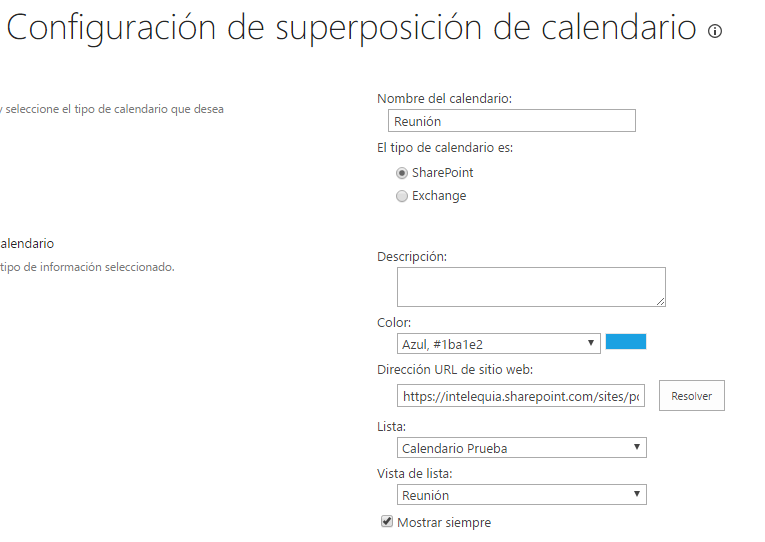
To select the list and corresponding list view, click the Resolve button.
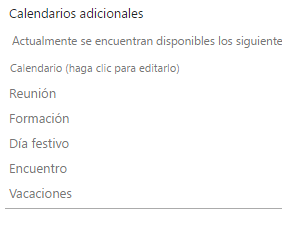
Once all overlays are created, events assigned to each category will appear in the calendar with their assigned color. After adding all overlays, your new color-coded calendar is complete and ready to use.